Key takeaways
- A wired Ethernet connection is not affected by walls, distance or nearby networks, so it delivers steadier speed and lower lag than WiFi.
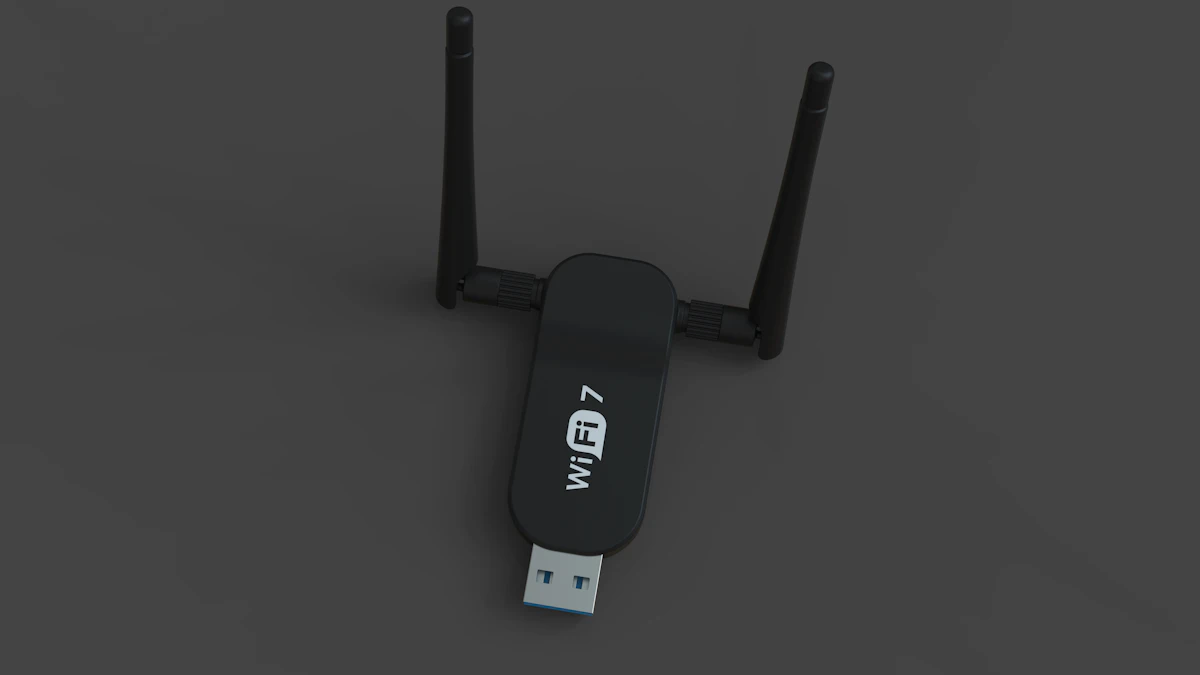
- WiFi 7 can reach multigigabit speeds close to the router, according to the WiFi Alliance, but performance drops through walls and on crowded channels.
- Consoles, desktop PCs and TVs near the router benefit most from a cable, while phones and laptops are usually fine on a well placed WiFi network.
In this story 6 sections
If your device sits still and you can reach it with a cable, Ethernet wins on consistency almost every time. WiFi wins on freedom, and for most phones, laptops and casual streaming it is more than fast enough. The real question in the ethernet vs wifi debate is not which one is faster on paper, it is whether your current wireless connection is actually holding you back. For a gaming console, a desktop PC or a TV in the same room as the router, plugging in is cheap insurance. For everything you carry around, a good WiFi setup is the practical choice.
Here is how the two compare, where each one falls short, and how to decide for your own home.
The key differences at a glance
- Consistency: a cable gives a steady connection that does not change when someone walks between you and the router. WiFi performance rises and falls with distance, walls and interference.
- Speed in real rooms: modern WiFi can hit multigigabit speeds in ideal conditions, but those numbers drop quickly through walls. Ethernet speed stays the same anywhere along the cable.
- Latency: wired links usually have lower and steadier delay, which matters more for gaming and video calls than raw download speed.
- Convenience: WiFi needs no installation and works with phones and tablets that have no Ethernet port at all.
- Cost: a basic Ethernet cable is inexpensive. Running cable through walls or across a house is where the cost and effort show up.
- Your plan is the ceiling: neither option can make your connection faster than what your internet provider delivers to the modem.
Ethernet: the steady option
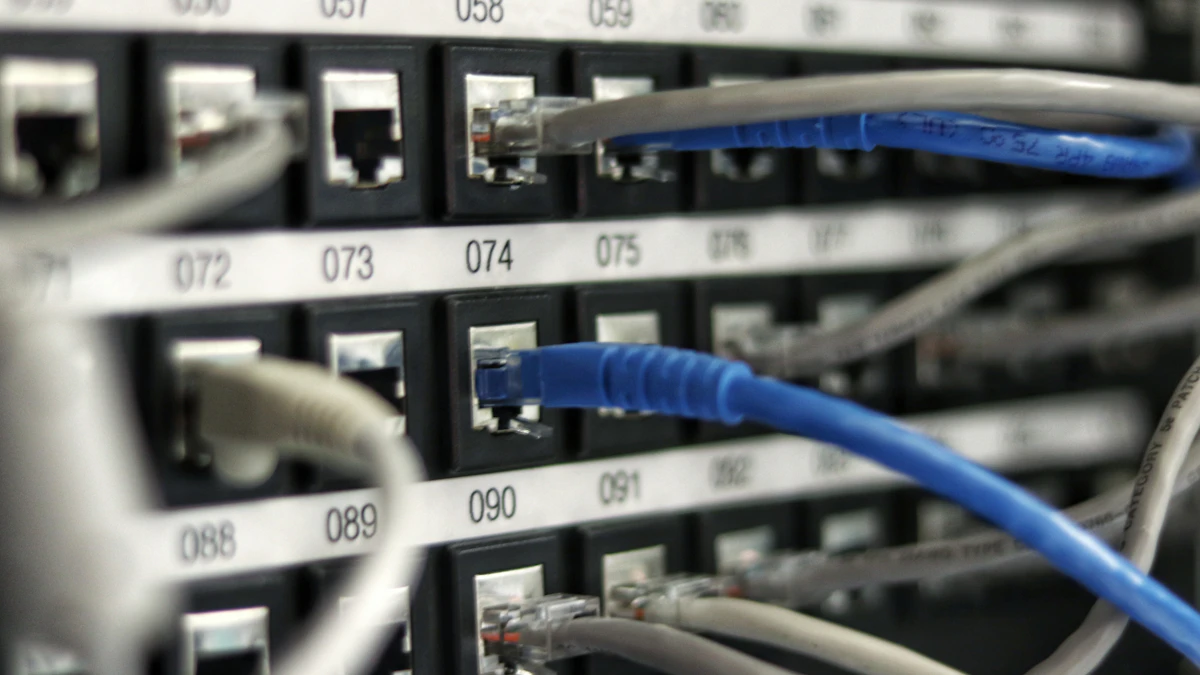
An Ethernet connection is a physical cable from your device to a port on your router, a network switch or a wall jack. Most home routers have a few of these ports on the back. If you are unsure which box is which, our guide to the difference between a modem and a router explains where the cable should go.
Strengths of a wired connection
The biggest advantage is that nothing in the air can disturb it. Microwaves, a neighbor's network on the same channel, a concrete wall or a fish tank between rooms will not slow a cable down.
Distance is also less of a problem than people expect. Common Category 5e and Category 6 cables are rated for runs of up to 100 meters (about 328 feet) at gigabit speeds, according to the cabling standards summarized in Wikipedia's Category 6 cable entry. That is longer than almost any room to room run in a typical American house.
Ethernet is also the easiest way to rule out your router's wireless radio when something goes wrong. Microsoft's own Windows WiFi troubleshooting guide suggests connecting a PC with an Ethernet cable as a test: if the wired connection works, the problem is with the WiFi, not your internet service.
Weak spots of Ethernet
The obvious one is the cable itself. Your device has to stay within reach of a port, and running wires to an upstairs bedroom or a detached office can mean drilling, cable clips or paying an installer.
Many devices no longer have a port. Phones, tablets and a lot of thin laptops need a USB adapter to plug in, which adds cost and one more thing to lose.
Cable type matters once you go past gigabit speeds. Category 5e is most commonly used for gigabit Ethernet. Category 6 can carry 10 gigabit Ethernet, but only up to about 55 meters, while Category 6A is specified to carry 10 gigabit over the full 100 meters. If your plan and router support more than 1 Gbps, check the label printed on the cable jacket.
WiFi: the flexible option
WiFi sends data over radio, usually on the 2.4 GHz and 5 GHz bands, and on newer routers the 6 GHz band too. Every phone, laptop and smart TV on the market supports it, and setup is just a password.
Strengths of wireless
Freedom of movement is the whole point. You can take a video call from the kitchen, stream on a tablet in bed and add a new smart speaker without touching a cable.
The technology has also improved a lot. The WiFi Alliance says WiFi 7 uses 320 MHz channels in the 6 GHz band to deliver twice the throughput of WiFi 6, enabling multigigabit device speeds. It also uses multi link operation, which lets a device spread traffic across more than one band for better throughput and reliability. In a room close to a modern router, wireless can match or beat the internet plan many households pay for.
For most daily tasks, plenty of speed is plenty. The FCC's household broadband guide puts "advanced" service at more than 25 Mbps, while describing its tiers as rough guidelines. A healthy WiFi connection a room or two away from the router clears that easily.
Weak spots of WiFi
Walls, floors and distance cut speed. Microsoft's troubleshooting advice for a slow wireless connection starts with making sure the device is close to the router and free of obstructions, which tells you how much placement matters.
Wireless is also shared. Every device on the network takes turns on the same radio channels, and nearby networks in apartments and dense neighborhoods compete for the same airspace. That can cause short spikes in delay even when a speed test looks fine. If you are not sure what that delay means, our explainer on what latency is covers it in plain terms.
Router settings play a role too. Apple's recommended settings for WiFi routers advise enabling every band the router supports, using a 20 MHz channel width on 2.4 GHz and Auto on 5 GHz and 6 GHz, and notes that wider channels are faster but more susceptible to interference.
Is Ethernet faster than WiFi for gaming and TVs?
For gaming, the answer is usually yes in the way that matters. Download speed rarely limits an online match. Consistent, low delay does, and a cable removes the wireless variables that cause sudden lag. If your console or gaming PC is in the same room as the router, plugging it in is one of the cheapest upgrades you can make.
For a streaming TV, the benefit depends on distance. A TV next to the router will stream fine on WiFi. A TV at the far end of the house that buffers at night is a strong candidate for a cable.
Downloads follow the same pattern. Large game or system updates finish faster on whichever connection delivers more of your plan's speed to the device, and over a long distance that is usually the wired one.
Options when a cable will not reach
You do not have to choose between drilling holes and living with weak WiFi. A few middle paths are worth knowing:
- Mesh WiFi: several units placed around the home spread a stronger signal. Many mesh units also have Ethernet ports, so a console near a satellite unit can still plug in.
- Coax networking (MoCA): the MoCA Alliance describes its standard as a way to reuse existing coaxial TV wiring for home networking. If your rooms already have cable TV jacks, adapters can turn them into wired network links.
- Moving the router: a central, open spot often helps more than any new hardware. Our guide on how to make your WiFi faster walks through placement and settings.
Which one should you pick?
Match the connection to the device and the room:
- Competitive gamers and streamers: use Ethernet for the console or PC whenever a cable can reach.
- Remote workers on video calls all day: plug in the desk computer if you can. A dropped frame matters more than a few extra megabits.
- Apartment dwellers with lots of nearby networks: wired links for stationary devices help, and the 5 GHz or 6 GHz bands usually face less crowding than 2.4 GHz.
- Households that mostly browse and stream on phones and laptops: good WiFi is enough. Spend the effort on router placement rather than cables.
- Homes where WiFi is weak in one far room: try mesh or coax networking before you open up walls.
Before you change anything, measure. Run a speed test on WiFi, then again with a cable in the same spot, using the steps in our guide to checking your internet speed. If the numbers are close and your connection feels smooth, your WiFi is doing its job. If the wired result is far better, you have your answer. You can find more home networking explainers in our tech section.
Sources
Share this story
Spotted an error? Tell us