Key takeaways
- Placing the router off the floor, in plain view and near the center of the home is the quickest free way to improve WiFi speed, according to Google's placement guide.
- Apple recommends one network name for all bands, Auto channel selection, 20 MHz width on 2.4 GHz and Auto width on 5 GHz and 6 GHz.
- If a device connected by Ethernet next to the router is also slow, the limit is your internet plan or provider line rather than your WiFi.
In this story 8 sections
- Before you start
- Stage 1: Move the router to a better spot
- Stage 2: Put each device on the right band
- Stage 3: Change a few router settings
- Stage 4: Update the router and your devices
- Stage 5: Fix the device that is still slow
- Stage 6: Add coverage or upgrade the hardware
- When your WiFi still is not faster
If you have ever wondered how to make your WiFi faster without paying for a bigger internet plan, the good news is that most of the gains come from free changes: where the router sits, which band your devices use, a few router settings, and firmware. This guide is for anyone with a home router or mesh system who can open its app or admin page. Plan on about 30 to 45 minutes for the whole thing, and you can stop after any stage once speeds feel right.
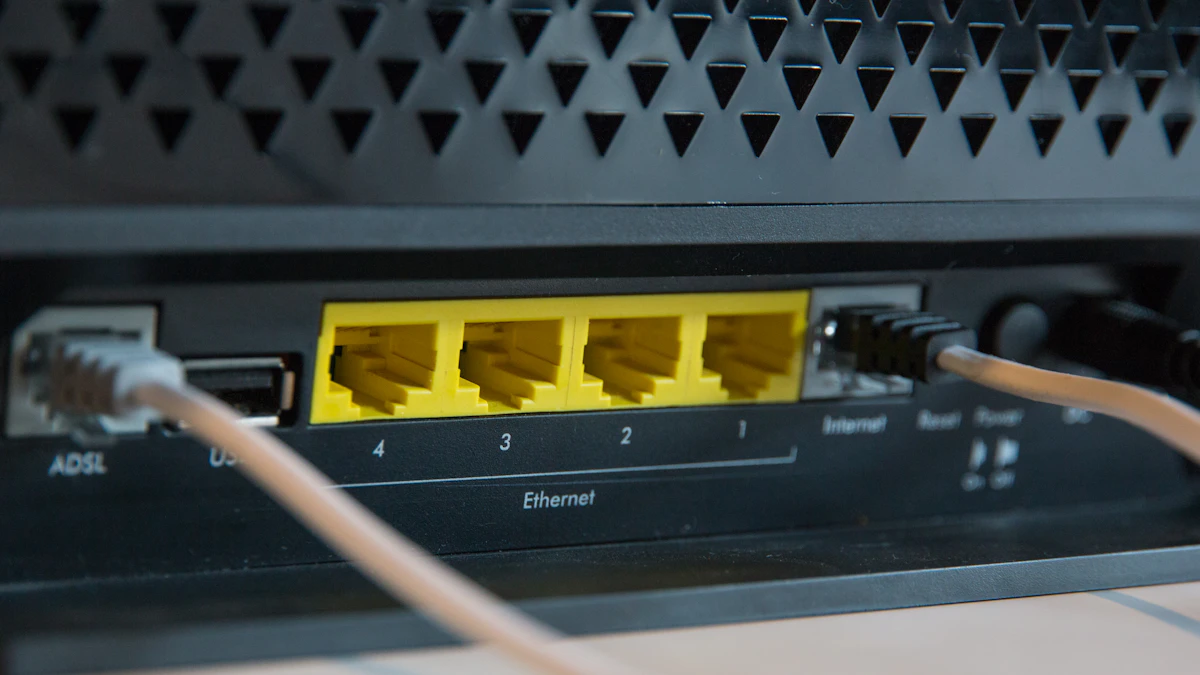
One thing to settle first. Wi-Fi speed and internet speed are not the same. Your plan sets the ceiling for how fast data reaches your home, and Wi-Fi decides how much of that reaches each phone, laptop or console. If a device plugged in with an Ethernet cable is also slow, the problem is upstream, and our guide on why your internet is so slow is the better place to start.
Before you start
- Run a baseline test next to the router and again in the room where things feel slow. Our walkthrough on how to check internet speed explains which numbers matter.
- Find your router's login. It is usually on a sticker on the bottom, or inside the maker's app (Google Home, Eero, Nest, Netgear Nighthawk, TP-Link Deco and so on).
- Know what box you have. If your provider gave you a single gateway, it is both modem and router. Our explainer on modem vs router helps you tell.
- Write down any settings before you change them, so you can undo a change that makes things worse.
Stage 1: Move the router to a better spot
Placement is the biggest free upgrade, and it takes five minutes.
- Get the router off the floor. Google's guide on where to place your Wifi devices recommends a spot off the ground and in plain view, such as a shelf or TV stand, ideally central and at eye level.
- Pull it out of cabinets, closets and the back of the TV console. Google lists walls, doors and even aquariums as obstructions worth avoiding, so an open area beats a tucked away corner.
- Aim for the middle of the home rather than the wall where the cable comes in. If the outlet is in a corner, a longer coax or Ethernet cable is often the cheapest speed boost you can buy.
- Test again in the slow room. A few feet of difference can change the result noticeably.
Stage 2: Put each device on the right band
Most current routers broadcast on 2.4 GHz and 5 GHz, and newer Wi-Fi 6E and Wi-Fi 7 models add 6 GHz. In general, 2.4 GHz reaches farther but is slower, while 5 GHz and 6 GHz are faster at shorter range.
- Check that every band is turned on. Apple's recommended settings for Wi-Fi routers say to enable all bands your router supports.
- Use one network name for all bands. Apple recommends a single, unique name for every band so devices can pick the best one on their own. Avoid the factory default name.
- If your router splits the bands into two names, connect the laptop or console you use most to the 5 GHz one when you are within a room or two of the router. Microsoft notes that 2.4 GHz and 5 GHz networks show up as separate entries in the Windows Wi-Fi list when they are split.
- Leave smart plugs, cameras and other low traffic gadgets on 2.4 GHz. They rarely need more, and many only support that band.
Stage 3: Change a few router settings
Open your router app or admin page. Names vary by brand, but these are the settings Apple recommends in its router guide:
- Channel: set to Auto, so the router can avoid crowded channels. If you run more than one router, give each a different channel.
- Channel width: 20 MHz for 2.4 GHz, and Auto (or all widths) for 5 GHz and 6 GHz. Wider channels carry more data on the faster bands, while a narrow channel keeps 2.4 GHz stable in crowded apartment buildings.
- Radio mode: set to All, or to the widest range your router offers, so newer devices can use their faster modes.
- WMM: turn it on. Apple lists it as Enabled.
- Security: choose WPA3 Personal, or WPA2/WPA3 Transitional if older devices must connect. Apple advises against older modes like WEP and TKIP, and an open network invites neighbors to share your bandwidth. Our guide to securing your WiFi router covers the rest of the safety settings.
- Hidden network and MAC filtering: Apple says to leave both disabled. They do not speed anything up and can cause connection trouble.
After saving, the router may restart. Apple suggests forgetting and rejoining the network on your devices once you change router settings.
Stage 4: Update the router and your devices
- Turn on automatic firmware updates. Apple lists this as a recommended setting, and updates often include performance and security fixes.
- Restart the router if it has been running for months. Unplug it, wait about 30 seconds, and plug it back in. A restart is not the same as a reset, which wipes your settings; our article on how to reset a router explains when you need which.
- On a Windows PC, check the Wi-Fi driver. Microsoft's Wi-Fi troubleshooting page shows the version under Device Manager > Network adapters > right click your Wi-Fi adapter > Properties > Driver tab.
- On the same Properties window, open Power Management and uncheck "Allow the computer to turn off this device to save power." Microsoft lists this as a fix when a laptop's Wi-Fi drops or slows.
Stage 5: Fix the device that is still slow
If one phone or laptop lags while others are fine, focus on that device.
- iPhone: go to Settings > Wi-Fi, tap Edit, then tap the More Info button next to your network and choose Forget This Network, then Forget. Pick the network again from the list and enter the password. Apple notes that with iCloud Keychain, this forgets the network on your other Apple devices too.
- Windows laptop: press Ctrl + Shift + Esc to open Task Manager and close apps that are using a lot of network data, such as cloud sync or large downloads. Microsoft suggests this along with checking signal strength.
- PS5, Xbox or desktop PC: if the console or computer sits near the router, an Ethernet cable will almost always beat Wi-Fi for speed and steady latency.
Stage 6: Add coverage or upgrade the hardware
When the router is well placed and set up, but far rooms are still slow, the house simply needs more coverage.
- Mesh points: a mesh system uses several units that work as one network. Google advises spreading points evenly, roughly halfway between the router and the dead zone, and no more than two rooms from the router or another point. Points work best when they have a clear line to each other.
- Wired backhaul: if your home has Ethernet in the walls, connecting mesh points by cable frees up wireless capacity for your devices.
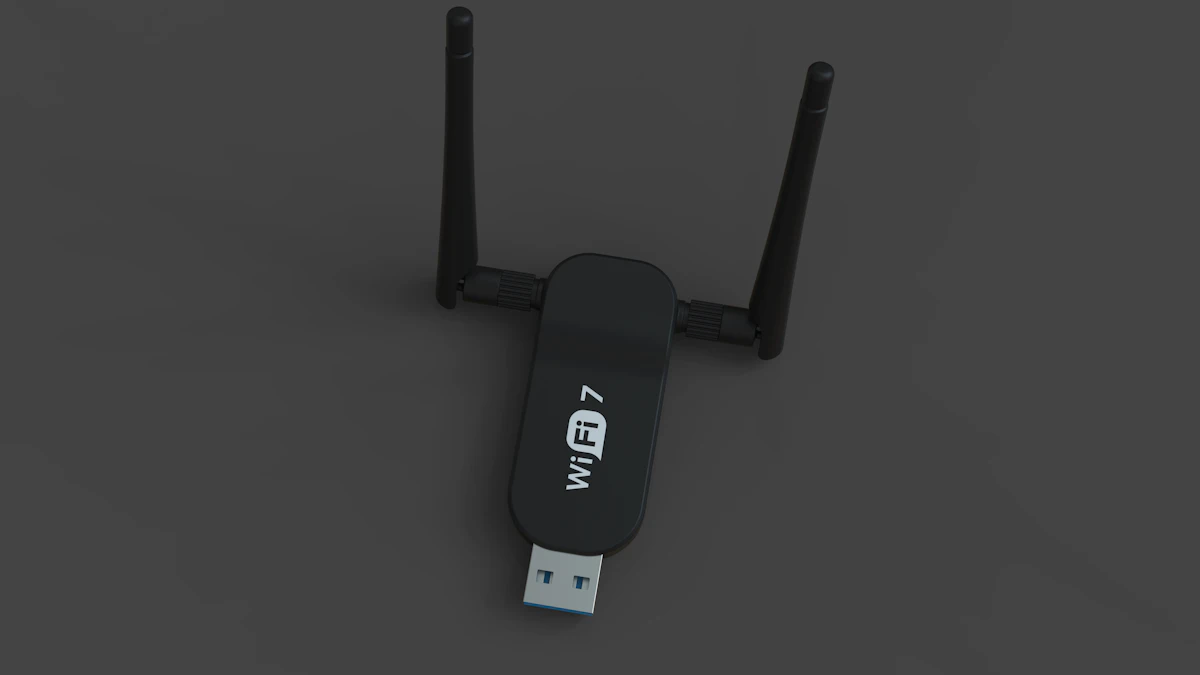
- Newer standards: the Wi-Fi Alliance says Wi-Fi 6 added features like OFDMA and Target Wake Time that help busy homes, and Wi-Fi 7 adds 320 MHz channels in the 6 GHz band and multi link operation. You only see those gains when both the router and the device support them, so check your phone and laptop specs before buying.
- Provider gear: if your gateway is several years old, ask your provider whether a newer model is available.
When your WiFi still is not faster
If speeds next to the router match your plan but drop sharply elsewhere, keep working on placement and coverage. If speeds are low even beside the router or over Ethernet, the bottleneck is your plan or your provider's line. The FCC's household broadband guide puts "advanced" service at more than 25 Mbps and suggests it for homes where three or four devices run more than one high demand app at the same time, which helps you judge whether your plan fits your household.
Call your provider when wired tests come in well below what you pay for, when the modem's lights show errors, or when speeds fall at the same time every evening. Bring your test results, with the date and time of each one. A list of numbers taken next to the router and over a cable is the fastest way to get a technician to take the problem seriously.
For more home network guides, browse our Tech section.
Sources
Share this story
Spotted an error? Tell us