Key takeaways
- Every home network has two passwords to change, the router admin password and the WiFi password, and the FTC warns against using your name, address or router brand in either.
- The FTC recommends WPA3 Personal encryption, with WPA2 Personal as the fallback, and suggests a new router if neither option appears after a software update.
- Turning off remote management, WPS and UPnP, enabling the firewall and moving visitors to a guest network closes the most common gaps on a home router.
In this story 7 sections
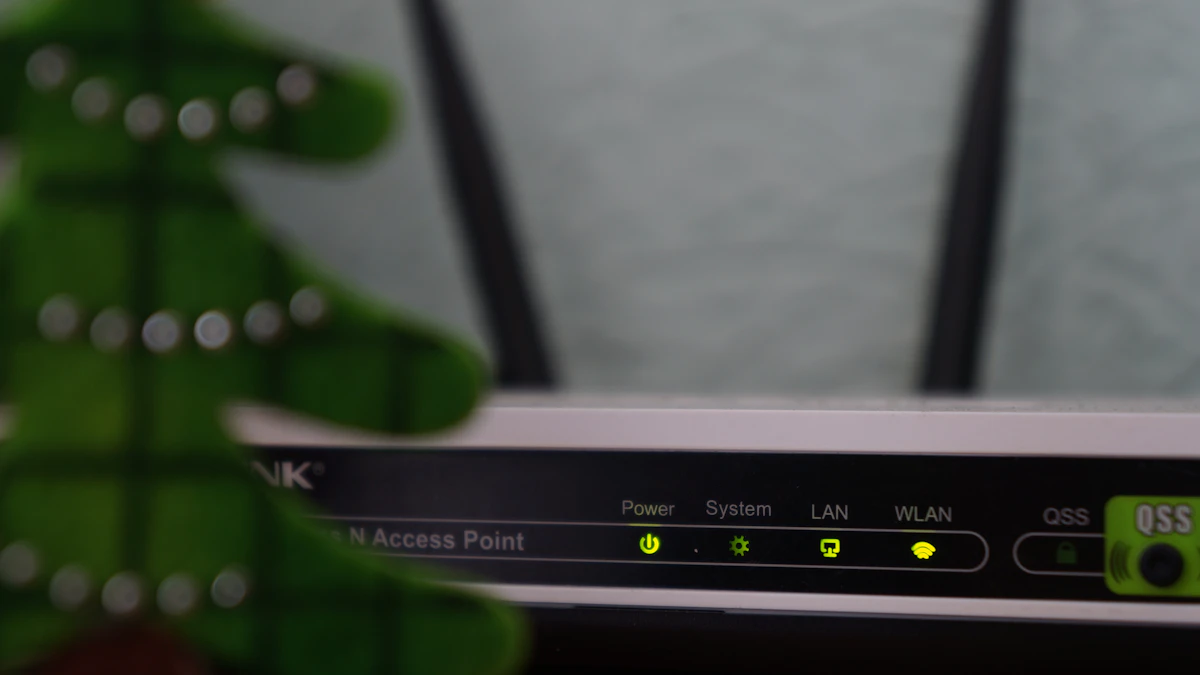
Your router is the front door to every phone, laptop, TV and smart speaker in the house, and most people never touch its settings after the installer leaves. This guide is for anyone asking how to secure my WiFi router at home without hiring help. If you can open a web browser, you can do it, and the whole job usually takes 20 to 30 minutes, with a few short interruptions while the router restarts.
The steps below follow the home WiFi advice published by the Federal Trade Commission and the Federal Communications Commission. Menu names differ by brand, so treat the wording here as a map and look for the closest match on your own screen.
Before you start
Gather a few things so you are not hunting for them halfway through:
- A device connected to your home network, by WiFi or an Ethernet cable. TP-Link's support page notes you must be on the router's own network to reach its login page, and most brands work the same way.
- The sticker on the bottom or back of the router. It usually lists the default network name, the WiFi password and sometimes the admin login.
- The router's brand and model number, which you need for firmware downloads and brand-specific instructions.
- A password manager or a notebook you keep somewhere safe. You are about to create two new passwords.
- A little patience. Every time you save a WiFi setting, your devices may drop off and need to reconnect.
Stage 1: Get into the router's settings
- Open a web browser on a connected device. TP-Link recommends Chrome, Firefox or Edge.
- Type your router's login address directly into the address bar, not the search box. TP-Link's login guide lists tplinkwifi.net or 192.168.0.1 for its routers, and suggests trying 192.168.1.1 if the first two do not load. Other brands print their address on the router label or in the manual.
- If your browser shows a privacy warning, that is common. Router admin pages often use a self-signed certificate, and TP-Link tells users to choose Advanced and then proceed to the router's address.
- Sign in. Newer routers make you create an admin password the first time. Older ones may still accept a factory default, such as "admin" for both the username and password on older TP-Link models.
Prefer a phone? Many brands have a companion app (TP-Link's is called Tether) that handles the same settings with fewer menus. Internet providers that supply your router often have their own app too.
Stage 2: Lock down the logins
This is the stage that matters most. The FTC points out there are two separate passwords on every home network, and people often change only one.
Change the router admin password
- Find the administration, system or management section.
- Change the default admin username if your router allows it, and set a new admin password.
- Use something long and unique. The FTC warns against passwords or usernames that include your name, your address or the router brand.
- Save it in your password manager. If you do not use one yet, our guide on whether you need a password manager walks through the options.
The FCC calls this a job for the day the router is installed, because so many routers ship with preset admin passwords that anyone can look up.
Rename the network and set a new WiFi password
- Open the wireless or WiFi settings.
- Change the network name (SSID). Pick something that does not reveal who you are, your apartment number or the router model.
- Set a new WiFi password, long enough that nobody guesses it from outside your window.
- Save, then reconnect your phone and laptop with the new details.
If you run separate 2.4 GHz and 5 GHz networks, repeat this for each one.
Stage 3: Turn on strong encryption and the firewall
- In the wireless security settings, choose WPA3 Personal if it is listed. The FTC calls WPA3 the newer and best option. WPA2 Personal is the fallback and still scrambles your traffic.
- Some routers offer a mixed WPA2/WPA3 mode. That can help if an older device refuses to connect to WPA3 alone.
- If the only choices are WEP or the original WPA, update the router software first. The FTC says that if WPA2 or WPA3 still do not appear afterward, it is time to think about a new router.
- Find the firewall setting, usually under security, and make sure it is switched on.
The FCC notes that some routers come out of the box with encryption turned off entirely, so do not assume yours was set up correctly.
Stage 4: Switch off features you do not need
The FTC recommends turning off three features that make life easier for attackers:
- Remote management. This lets someone change router settings from outside your home. Unless you truly need it, turn it off.
- WPS (WiFi Protected Setup). The push button or PIN pairing method is convenient but weaker than typing a password.
- UPnP (Universal Plug and Play). It lets devices open connections on your network automatically, without asking you.
A game console or video doorbell may complain after UPnP goes off. If that happens, check the device maker's help pages for the specific ports it needs rather than turning UPnP back on for everything.
The FCC also suggests a MAC address filter, which limits the network to devices you list. It adds work every time a new gadget arrives, so treat it as optional.
Stage 5: Keep it updated and separate guests
Update the firmware
- Look for a firmware or software update option in the router settings, or check the manufacturer's support site for your exact model.
- Install any update and let the router restart without unplugging it.
- Register the router with the manufacturer if they offer it, which the FTC suggests so you hear about updates.
- If your internet provider owns the router, ask whether it pushes updates automatically.
Router security also has a policy side. Our coverage of the TP-Link router ban debate and state lawsuits explains why regulators are watching which routers Americans buy.
Set up a guest network
Most routers have a guest WiFi option. Turn it on, give it its own password, and hand that one to visitors. The FTC gives two reasons: fewer people learn your main password, and malware on a visitor's phone stays away from your own computers. Smart plugs, cameras and other gadgets can live there too.
Log out
When you finish, log out of the admin page. The FTC notes that a logged in admin session is one more way for someone to change your settings.
When it does not work
The login page will not load. Confirm you are connected to the router's network and not mobile data. Type the address in the address bar, try the other common IP address, or check the label.
You forgot the admin password. Most routers have a small reset button. Holding it restores factory settings, which wipes your changes, so you will need to repeat these steps.
A device will not connect after the encryption change. Forget the network on that device and join again. If it still fails on WPA3, use the mixed mode or WPA2 Personal for now.
Your router is provider owned and locked. Some settings may be managed by your internet company. Call them and ask them to change the admin password, disable remote management and confirm automatic updates.
You suspect someone is already inside. After resetting the router, check your phone with our guide on how to know if your phone is hacked, and secure your Google account or other key accounts from a trusted device.
Set a calendar reminder to log in every few months and check for firmware updates. It takes five minutes, and it keeps everything you did today working. For more home security walkthroughs, browse our tech guides.
Sources
Share this story
Spotted an error? Tell us