Key takeaways
- The official ChatGPT app is free in the App Store, requires iOS 18 or later, and is published by OpenAI, so check the developer name before you install.
- You can launch ChatGPT voice mode with one press by assigning its voice conversation action to the Action button under Settings > Action Button > Shortcut.
- On iOS 27 you connect ChatGPT to Siri under Settings > Siri > ChatGPT > Set Up, and OpenAI says you can use it without an account or link a free or paid one.
In this story 6 sections
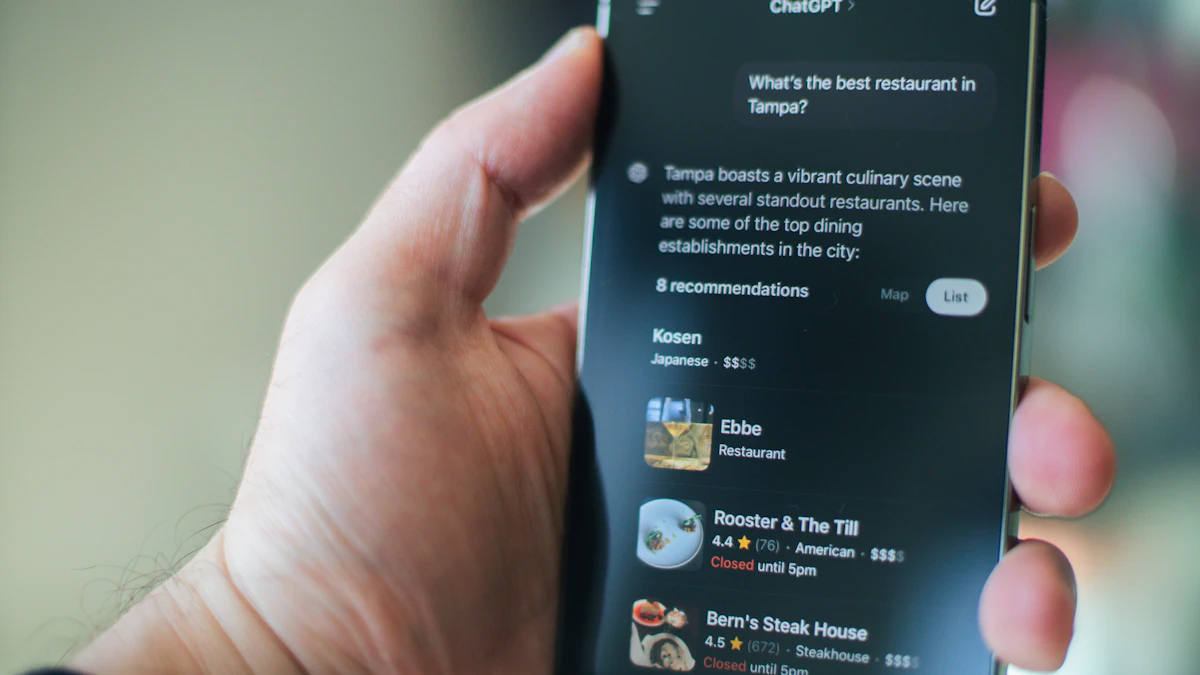
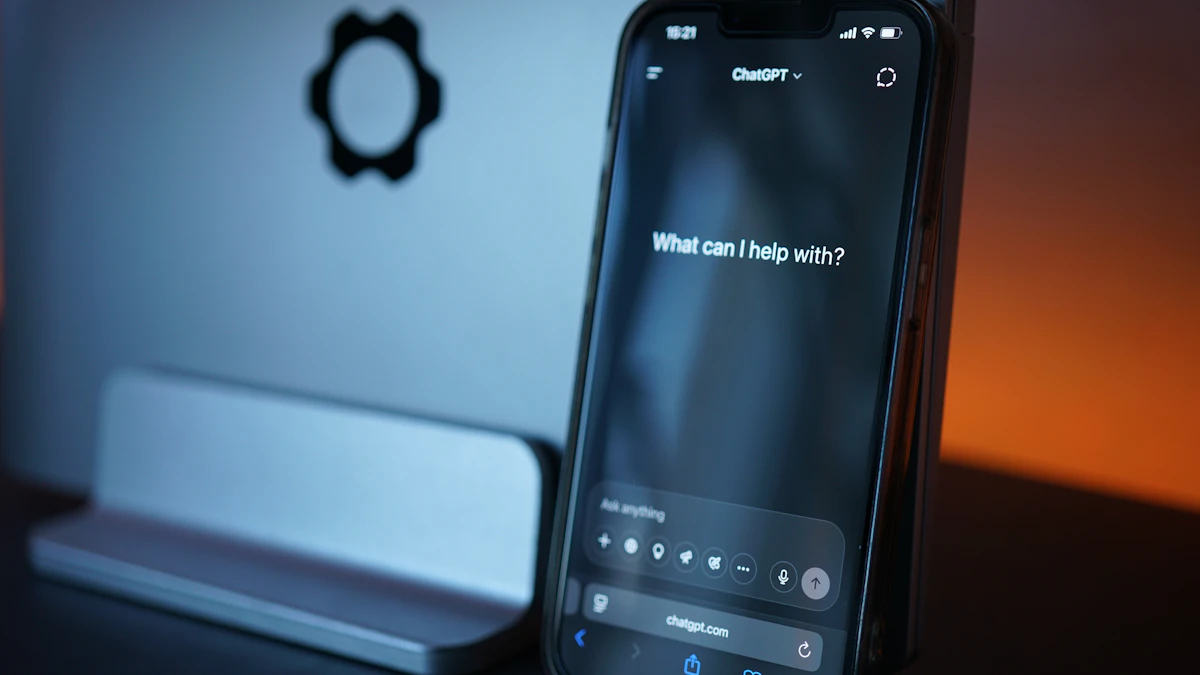
If you just got a new iPhone, or you have been typing questions into ChatGPT in Safari, this guide shows you how to use ChatGPT on iPhone the easy way: through the official app, with your voice, from a widget or the Action button, and through Siri. Setting up the app takes about five minutes. Adding the Siri connection and a shortcut button takes another five. You do not need to pay for anything to follow along.
Before you start
- An iPhone on iOS 18 or later. The App Store listing says the ChatGPT app "Requires iOS 18.0 or later." Check yours in Settings > General > About.
- An Apple Account signed in to the App Store.
- A ChatGPT account (optional). You can sign up inside the app. A free account is enough for chatting, voice and photo questions.
- For the Siri connection: an iPhone that supports Apple Intelligence. Apple's current list includes iPhone 15 Pro, iPhone 15 Pro Max, iPhone Air, iPhone Duo and every iPhone 16 model or later.
Getting the official ChatGPT app
Search results can include other AI chat apps with similar names and icons, so OpenAI's download help page tells you to confirm the publisher is OpenAI before you install.
- Open the App Store and tap Search.
- Type openai chatgpt and look for the app whose developer line reads OpenAI. The App Store listing shows the seller as OpenAI OpCo, LLC.
- Tap Get, then confirm with Face ID, Touch ID or your password.
- Open the app and choose a sign in option. If you already use ChatGPT on the web, pick the same login method you used there. OpenAI offers several, and its help center admits mixing them up is a common source of confusion.
The download is free. Paid plans such as ChatGPT Go and ChatGPT Plus appear as in app purchases, billed through your Apple Account. If you are weighing an upgrade, our ChatGPT Plus vs Free comparison breaks down what changes.
Using ChatGPT in the app: typing, photos and voice
Ask by typing
- Tap the message box at the bottom of the screen.
- Type your question and tap the send arrow.
- To start fresh, open the menu and choose a new chat. Old conversations stay in your history.
Short, specific requests get better answers than vague ones. Our guide on how to write better AI prompts has examples you can copy.
Ask about a photo
- Tap the + button next to the message box.
- Pick Camera to take a new photo, or Photos to choose one from your library.
- Add a question, such as "What plant is this?" or "Turn this handwritten recipe into a shopping list," and send it.
The App Store description gives transcribing a handwritten recipe and identifying a landmark as two examples of what photo upload can do.
Talk to it with voice mode
- Tap the soundwave icon at the right side of the message box.
- Allow microphone access the first time iOS asks.
- Speak naturally. You can interrupt to change direction, and tap the end button when you are done.
The microphone icon is different. It turns your speech into typed text so you can edit it before sending.
Opening ChatGPT faster: widgets and the Action button
Add the ChatGPT widget
- Touch and hold an empty spot on your Home Screen until the apps jiggle.
- Tap Edit, then Add Widget, and search for ChatGPT.
- Choose a small or medium widget and tap Add Widget.
- To pick which buttons it shows (new chat, camera, photos, dictation or voice), touch and hold the widget and select Edit Widget, as MacStories described when OpenAI added the customizable widget.
Map voice mode to the Action button
iPhone 15 Pro and newer models with an Action button can launch a ChatGPT voice chat with one press.
- Open Settings and tap Action Button.
- Swipe to Shortcut, then tap the button to choose one.
- Scroll to ChatGPT in the list of apps and pick its voice conversation action. Do not use Open App for this, because that only opens the app.
- Press and hold the Action button to test it.
Connecting ChatGPT to Siri and Apple Intelligence
This part is separate from the app. It lets Siri pass some questions to ChatGPT and lets Writing Tools draft text for you anywhere you type. According to OpenAI's setup guide, you can use it without a ChatGPT account, or connect a free or paid account so your requests are saved to your ChatGPT history.
Turn it on in iOS 27
- Open Settings and tap Siri.
- Tap ChatGPT, then Set Up.
- Choose to use it without an account, or sign in to your ChatGPT account.
If you use the newer Siri AI, the path is Set Up Extensions > ChatGPT, then turn on Use Extension.
On iOS 26
The steps match, except the menu is called Apple Intelligence & Siri instead of Siri. You will see two choices: Enable ChatGPT or Use ChatGPT with an Account. You can sign in later from the same ChatGPT settings screen by tapping Sign In.
Use it with Siri, Writing Tools and the camera
- Siri: ask a question as usual. When ChatGPT would give a better answer, Siri asks before sending it. To stop the prompt, turn off Confirm Requests under Settings > Siri > ChatGPT (called Confirm ChatGPT Requests on iOS 26). Siri AI users cannot turn this off.
- Writing Tools: in any text field, open Writing Tools, tap Compose, describe what you want and send it.
- Visual Intelligence: press and hold Camera Control on models that have it, or use a Control Center or Lock Screen control, point at something, then tap Ask.
OpenAI says your request, any attachments you choose to share and limited information needed to process it are sent to ChatGPT. Apple's Apple Intelligence support page adds that the ChatGPT connection works only in regions where the ChatGPT app and service are available, and that features relying on server models, including Siri AI, have daily usage limits.
When ChatGPT on your iPhone does not work
The app will not install. Check that you are on iOS 18 or later. If your iPhone cannot update that far, the current app will not install, but you can still use ChatGPT in Safari at chatgpt.com.
The app crashes or freezes. OpenAI's troubleshooting page suggests relaunching the app first, then deleting and reinstalling it. If it keeps happening, OpenAI support asks for your model name (Settings > General > About), your language and any third party keyboards (Settings > General > Keyboard > Keyboards).
Your chats are missing after you sign in. You may have used a different login method than on the web. Sign out and sign back in with the original one.
You cannot find ChatGPT in Siri settings. Your iPhone may not support Apple Intelligence, or the feature may not be offered in your region. Apple also requires the device language and Siri language to be set to the same supported language.
Siri never hands anything to ChatGPT. Go to Settings > Siri > ChatGPT and make sure Use ChatGPT is on. If you turned off Setup Prompts, Siri also stops suggesting it.
Once everything works, take a minute to secure the account you just linked. Our checklist to protect your online accounts in 10 minutes covers two factor sign in, and if you share your phone, you can also lock private ChatGPT chats with a PIN. More how tos live in our AI section.
Sources
- OpenAI Help Center: Setting up ChatGPT with Apple Intelligence
- OpenAI Help Center: Download the ChatGPT iOS app
- OpenAI Help Center: ChatGPT iOS app potential failures
- App Store: ChatGPT
- Apple Support: Get started with Apple Intelligence
- MacStories: ChatGPT for iOS customizable widgets
- TechRadar: ChatGPT voice mode on the Action button
Share this story
Spotted an error? Tell us