Key takeaways
- You can make Gemini your assistant from the Google app under Settings, Google Assistant, Digital assistants from Google, or from Settings, Apps, Assistant on your phone.
- Turning on Hey Google happens in the Gemini app under Settings, Talk to Gemini hands-free, followed by a short Voice Match setup.
- The Gemini on lock screen setting decides whether Gemini works before you unlock, and you can switch back to Google Assistant from your profile menu at any time.
In this story 7 sections
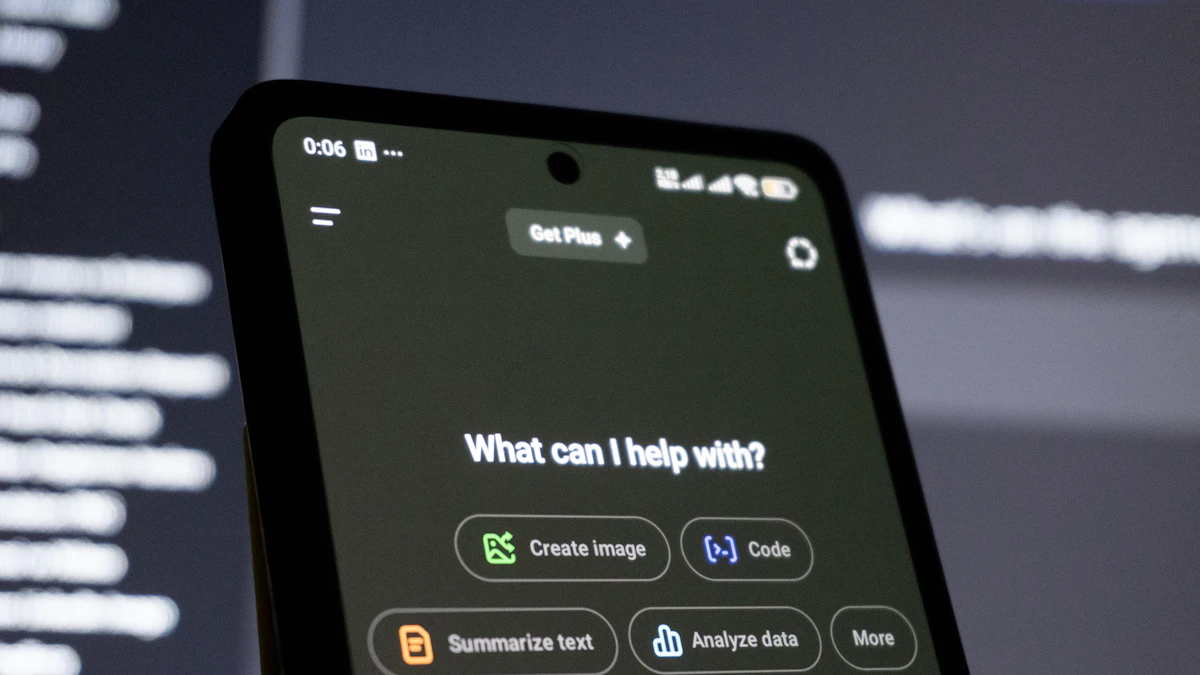
If you just got a new phone, or you keep long pressing the power button and wondering why a chat window pops up, this guide shows you how to use Gemini on Android from the first launch to the settings most people never find. It is written for anyone with a Samsung, Pixel, Motorola or other Android phone, and the whole setup takes about 10 minutes. You can stop after the first stage and still get a working assistant.
Gemini is Google's AI assistant. On many phones it now sits where Google Assistant used to be, so the same button press or voice command brings it up. On Pixel 9 and later it is already the default, according to Pixel Phone Help.
Before you start
- A Google Account. A personal account works. A work or school account only works if your admin allows Gemini Apps, and some features may be missing.
- A supported phone. Google says the Gemini app can be downloaded on Pixel phones with 2 GB of RAM or more running Android 10 or newer. Most recent Android phones from other brands qualify too.
- The Google app. Gemini runs through it, so update both the Google app and the Gemini app from the Play Store.
- Your language and country. Gemini is not offered everywhere, and "Hey Google" is missing in some languages. In the US with English set, you are covered.
- A few minutes of quiet if you plan to train Voice Match, since you will say a few phrases out loud.
Stage 1: Get Gemini on your phone and make it your assistant
Check which assistant your phone uses now
- Open Settings.
- Tap Apps, then Default apps.
- Look at Digital assistant app. It should show Google. If it shows something else (for example Bixby on some Samsung phones), tap it, then tap Default digital assistant app and pick Google. The exact wording can vary by brand.
Switch from Google Assistant to Gemini
If your phone still runs the older Google Assistant, you can move to Gemini in one of two ways described in Google's Gemini Apps Help.
- Open the Google app, tap your profile picture or initial, then tap Settings.
- Tap Google Assistant, then Digital assistants from Google.
- Choose Gemini and follow the prompts.
The second route skips the Google app: go to Settings, then Apps, then Assistant, then Digital assistants from Google, and pick Gemini.
Once you switch, Gemini also takes over on paired watches and earbuds. Smart speakers, smart displays, TVs and cars keep Google Assistant, so nothing changes in the kitchen or the car.
Stage 2: Open Gemini the way that suits you
There are four ways to bring Gemini up, and you do not have to pick just one.
- Hold the power button. On most phones, a long press opens a Gemini panel over whatever app you are using.
- Touch and hold the Home button, or swipe up from a bottom corner of the screen if you use gesture navigation.
- Say "Hey Google" once you turn it on (Stage 3).
- Open the Gemini app from your home screen for a full screen chat with your history.
The quick methods open a small overlay, not the whole app. That is useful when you want to ask about something on screen without leaving it.
If holding the power button shows the power menu instead, go to Settings, then System, then Gestures, then Press and hold power button, and choose Digital assistant. Google notes the steps vary by device, and some brands call it the side button, so search your settings for "side button" if you cannot find it.
Stage 3: Set up "Hey Google" and Voice Match
Hands free use is the part people ask about most, especially anyone hoping to use Gemini on Android like Siri.
- Open the Gemini app.
- Tap your profile picture or initial, then Settings.
- Tap Talk to Gemini hands-free and turn on Hey Google.
- Follow the prompts to set up Voice Match, which teaches Gemini to recognize your voice.
If "Hey Google" is not offered, your phone language may not support it. Google lists Bulgarian, Croatian, Greek, Hebrew, Ukrainian and several other languages as unsupported, and supervised accounts cannot use it either. You can still tap the microphone in the app.
Stage 4: Turn on the features that make it useful
Let Gemini see your screen
Gemini can answer questions about what you are looking at, such as a long article, a product page or a confusing settings menu.
- In the Gemini app, tap your profile picture or initial, then Settings.
- Tap Screen context.
- Turn on both the option to use text from your screen and the option to use a screenshot.
Now open Gemini over any app and tap Ask about screen (or Ask about page in Chrome), then type or say your question.
Connect apps like Gmail and Maps
Gemini can pull from Google apps you already use. Android Help lists Gmail, Maps, Tasks and YouTube Music, and Pixel Help adds Drive and Keep. You do not need a special command. Ask something like "Find the email with my flight confirmation" and Gemini uses the matching app when it can. Writing a clear request helps a lot, and our guide to writing better AI prompts has examples that carry over.
Give it your location for local answers
For "nearby" questions to work well, go to Settings, then Location, then App location permissions, tap Google, and check Use precise location.
Try Gemini Live for back and forth talk
Open the Gemini app and tap Live in the bottom right to have a spoken conversation. Tap Hold or End, or just say "stop", to pause it. Our full guide to Gemini Live with camera and screen share goes further.
Stage 5: Control privacy and the lock screen
These two settings matter more than most people expect.
- Lock screen access. In the Gemini app, open Settings, tap Gemini on lock screen, and decide whether to keep Use Gemini without unlocking on. With it on, simple voice actions like sending a message can work on a locked phone, though Gemini may ask you to unlock before showing a reply. Turn it off if other people can reach your phone.
- Gemini Apps Activity. With Keep Activity on, your chats are saved to your Google Account. Google notes that even accidental activations are stored when it is on. Review it from your profile picture in the Gemini app.
For a wider look at phone settings worth changing, see our guide to protecting your privacy on Android.
When Gemini on Android does not work
The power button opens the wrong thing. Recheck the gesture setting in Stage 2, then confirm Google is the default digital assistant app in Stage 1.
"Hey Google" does nothing. Make sure both Hey Google and Voice Match are on. Check that your phone language is supported and that the Google app has microphone permission. Retraining Voice Match in a quiet room often fixes missed wake words.
A feature you used before is gone. Gemini does not support everything Google Assistant did. Google says podcasts, news and radio stations, some third party music services and Interpreter mode are not supported, and you need to switch back to Assistant for those.
You want Google Assistant back. Open the Gemini app, tap your profile picture, tap Switch to Google Assistant, choose Google Assistant, and confirm with Switch. The full steps are on Google's page for managing the Gemini app on Android. Uninstalling the Gemini app alone does not change your default assistant, so do the switch first.
A work account shows missing features. That is usually an admin setting, not a bug. Try your personal account or ask your IT team.
Once everything is set, try one real task today, like asking Gemini to summarize a long email thread or explain a photo you took. Using it on something you actually need is the fastest way to learn what it does well and where you still want to check its answers. More guides like this live in our AI section, including how to edit photos with AI on Android.
Sources
Share this story
Spotted an error? Tell us