Key takeaways
- If every device in your home is offline, the cause is usually the modem, the router or a provider outage rather than your phone or computer.
- A proper power cycle means unplugging the modem and router for at least 30 seconds, then plugging the modem back in first.
- A network settings reset on iPhone or Windows is the last step because it erases saved Wi-Fi networks and passwords.
In this story 9 sections
- Airplane Mode or Wi-Fi got switched off
- The modem or router needs a proper restart
- Your provider has an outage
- Only one device can't get online
- A VPN, proxy or security app is blocking traffic
- Connected, but it says "No Internet"
- The network adapter or software is out of date
- Last resort: reset network settings
- When to call your provider or replace the hardware
If you are asking why is my internet not working, the quickest clue is whether every device is offline or just one. A whole house outage almost always points to the modem, the router or your provider, while a single stuck phone or laptop means the fix lives on that device.
So grab a second device and see whether it loads a web page on the same Wi-Fi. Then work through the fixes below in order, from thirty second checks to the resets you only want once the simple stuff has failed.
Airplane Mode or Wi-Fi got switched off
It sounds obvious, but it catches people constantly.
- iPhone or iPad: open Settings, tap Wi-Fi, make sure the switch is on and that your network shows a blue checkmark. Also confirm Airplane Mode is off. Apple's guide on Wi-Fi problems on iPhone and iPad adds that if the Wi-Fi switch is greyed out, you should restart the device.
- Windows PC: look at the network icon on the taskbar. Wi-Fi should be on and your network should say Connected. Then check Settings > Network & internet > Airplane mode and make sure it is off.
- Phone with data but no Wi-Fi: if your phone works on cellular but not at home, the home network is the suspect, not the phone.
The modem or router needs a proper restart
A real power cycle clears more problems than anything else on this list. Microsoft's Wi-Fi troubleshooting guide for Windows describes the order that matters:
- Unplug the power cable from the modem and the router (or the single gateway box if your provider gave you a combined unit).
- Wait at least 30 seconds.
- Plug the modem back in first and give it time for the lights to settle.
- Plug the router back in and wait another minute or two before testing.
This order lets the modem reconnect to your provider before the router starts handing out addresses. Pressing the reset pinhole is not the same thing. That wipes your settings, so leave it alone for now.
Your provider has an outage
If the restart did nothing and nothing in the house can get online, the problem may sit outside your walls. Check your provider's app or status page using your phone's cellular data. A local outage looks identical to a broken router from the inside.
Signs it is an outage rather than your gear:
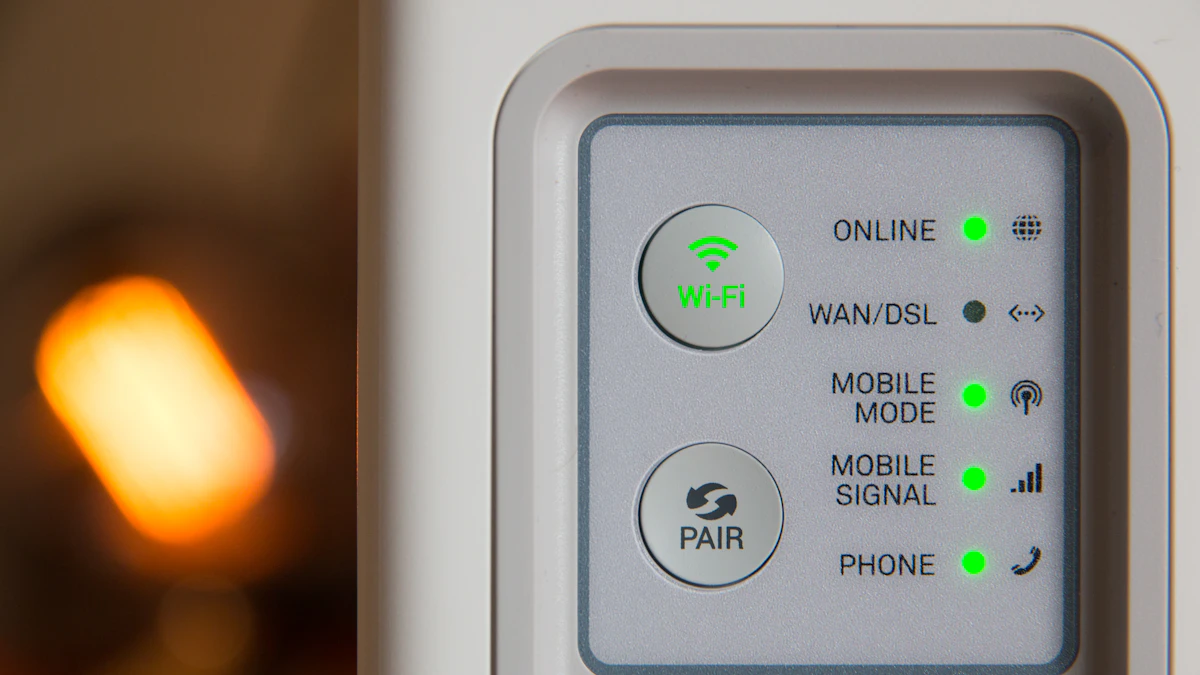
- The modem's internet or online light is off, blinking or a warning color after a full restart
- Neighbors on the same provider are offline too
- It started during a storm, nearby construction or a planned maintenance window
There is nothing to fix at home during an outage. Note when it started, because that helps if you later ask for a bill credit.
Only one device can't get online
When the other devices are fine, focus on the one that is not.
Forget the network and join again. On Windows, go to Settings > Network & internet > Wi-Fi > Manage known networks, select your network, choose Forget, then reconnect with the password. On an iPhone, tap the network name in Settings > Wi-Fi to see its options and forget it from there.
Try the other band. Many routers broadcast both 2.4 GHz and 5 GHz networks, and Microsoft and Apple both suggest switching bands as a test.
Move closer. If the signal bars are weak, walk the device into the same room as the router and test again. A device that works up close but drops out in the bedroom has a coverage problem, not a broken connection. That is closer to a speed issue, covered in our guide on why your internet is so slow.
Restart the device itself. A full restart clears stuck network services.
A VPN, proxy or security app is blocking traffic
Apple specifically recommends uninstalling VPN and security software, restarting and testing again when an iPhone shows Wi-Fi but cannot reach the internet. If the internet comes back with the app removed, contact the app's maker.
On Windows, also check Settings > Network & internet > Proxy. A proxy setting left over from a work tool or an old app can stop every page from loading. If you are not sure whether you need a VPN running at all, our explainer on whether you need a VPN walks through it.
Connected, but it says "No Internet"
This message means the device reached the router but the router is not passing traffic, or the device never got a valid address.
On iPhone and iPad, Apple says the No Internet Connection warning points to the router and network settings, so test other devices, check for router firmware updates and restart the router and modem.
On Windows, Microsoft lists a set of commands that reset the network stack. Open Command Prompt as administrator and run these one at a time:
- netsh winsock reset
- netsh int ip reset
- ipconfig /release
- ipconfig /renew
- ipconfig /flushdns
Restart the PC afterward. While you are in Command Prompt, type ipconfig and look at the IPv4 address. Microsoft notes that an address starting with 169.254 means the PC did not get an address from the router, which points back to the router or its DHCP settings.
The network adapter or software is out of date
On Windows, go to Settings > Windows Update > Check for updates, since network driver fixes often arrive there. Microsoft also suggests opening Device Manager, expanding Network adapters, opening your Wi-Fi adapter's Properties and, on the Power Management tab, unchecking "Allow the computer to turn off this device to save power". That setting can make Wi-Fi drop after the laptop sleeps.
If the adapter is still misbehaving, you can uninstall it from Device Manager and restart so Windows reinstalls it. Download a backup driver from your PC maker's site first, just in case.
Check the router's firmware too, through its app or admin page. Old firmware is both a reliability and a security issue, and our guide to securing your Wi-Fi router at home covers where to find those settings.
Last resort: reset network settings
Both Apple and Microsoft offer a full network reset, and both treat it as the final step because it erases saved Wi-Fi networks and passwords.
- iPhone or iPad: Settings > General > Transfer or Reset iPhone (or iPad) > Reset > Reset Network Settings. Apple notes this also clears cellular, VPN and APN settings, and suggests checking with IT first on a work or school device.
- Windows 11: Settings > Network & internet > Advanced network settings > Network reset, then Reset now. On Windows 10 it sits under Settings > Network & internet > Status > Network reset.
When to call your provider or replace the hardware
Call your internet provider if the modem shows no signal after a restart, the outage page shows nothing but you are still offline, or the problem keeps coming back every few days. Ask them to check the line and the signal levels to your modem, and to send a technician if they find a fault.
Replacing the router makes sense when it is several years old, no longer gets firmware updates, or keeps needing restarts even after the provider says the line is fine. If you are in a rural area and your current service simply is not dependable, it may be worth reading about how satellite internet works as an alternative.
If your provider keeps failing to fix a service problem, you can file a complaint with the FCC. According to the FCC's complaint guide, there is no fee, and service complaints are forwarded to the provider, which has 30 days to respond to you. You can also call 1-888-CALL-FCC (1-888-225-5322).
One habit worth adopting: write your provider's outage page and support number somewhere you can reach without Wi-Fi. The next time everything goes dark, you will know within a minute whether to start unplugging cables or just wait. For more help with home tech, browse our tech guides.
Sources
Share this story
Spotted an error? Tell us