Key takeaways
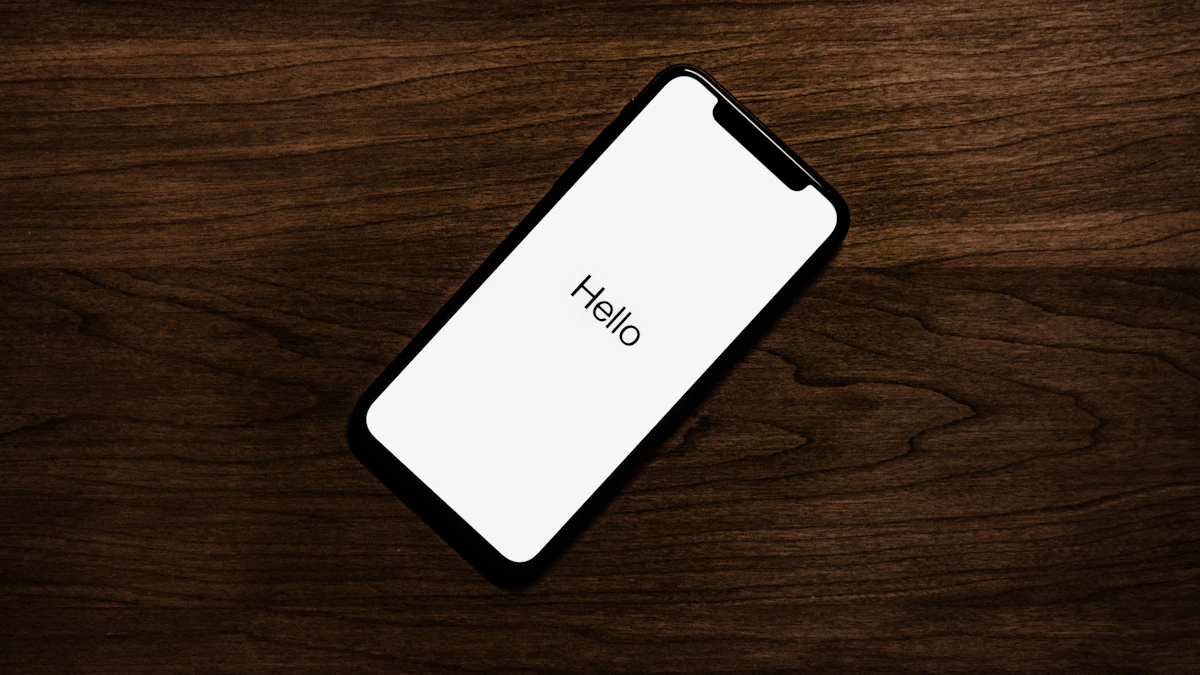
- The standard reset is Settings, General, Transfer or Reset iPhone, then Erase All Content and Settings, and it finishes when the Hello screen appears.
- If you forgot your passcode on iOS 17 or later, tap Forgot Passcode? on the iPhone Unavailable screen, as long as Find My is on and the phone is online.
- Erasing from Settings turns off Find My and Activation Lock, while a remote erase from iCloud.com leaves Activation Lock on.
In this story 8 sections
- Before You Start the Reset
- Stage 1: Prepare the iPhone You Are Giving Away
- Stage 2: Erase the iPhone From Settings
- Stage 3: Finish Up After the Reset
- How to Reset an iPhone When You Forgot the Passcode
- How to Reset an iPhone With a Computer and Buttons
- How to Erase an iPhone You No Longer Have
- When the Reset Does Not Work
Selling it, trading it in, or locked out? Knowing how to reset iPhone to factory settings properly takes about 15 minutes of prep and 5 to 15 minutes of waiting, and the order you do things in matters more than the reset itself. Below is the Settings method, plus fixes for a forgotten passcode or a phone you no longer have, all based on Apple's current support pages.
Before You Start the Reset
A factory reset wipes your photos, messages, apps, Apple Pay cards and settings. Apple notes that content stored in iCloud is not deleted from iCloud, but anything that lives only on the phone is gone for good. Get these ready first:
- A fresh backup, either to iCloud or to a computer, so you can restore everything on your next phone.
- Your passcode for the iPhone.
- Your Apple Account password, because the phone asks for it to sign out and turn off Find My.
- Your Apple Watch, if one is paired, so you can unpair it first.
If you are moving to a new iPhone, transfer your data before you erase anything. Our guide to setting up a new iPhone from your old one covers Quick Start.
Stage 1: Prepare the iPhone You Are Giving Away
Apple's checklist for selling or trading in an iPhone lists a few things to handle while you still have the phone in hand. Do them in this order:
- Back up the phone. Use iCloud or a computer, and wait until the backup finishes before you move on.
- Unpair your Apple Watch if you have one. Apple says this is the step that securely erases the watch as well.
- Cancel or transfer AppleCare if the phone has a plan you no longer want attached to you.
- Deregister iMessage if you are switching to an Android phone, so texts from iPhone users stop disappearing into your old number's iMessage account.
- Check Parts and Service History for a "Finish Repair" message if the phone was repaired recently.
Signing out is now built into the erase flow on recent versions. On iOS 26 or later, Apple says you can open Settings, tap your name, scroll down, tap Sign Out, then choose "Erase this iPhone." If it asks which account, tap "Sign out of iCloud and Store." On iOS 18 or earlier, the same Sign Out button asks for your Apple Account password and then you tap Turn Off.
Stage 2: Erase the iPhone From Settings
This is the standard method, and it is what Apple recommends on its factory reset support page.
- Open Settings and tap General.
- Scroll to the bottom and tap Transfer or Reset iPhone.
- Tap Erase All Content and Settings, then tap Continue.
- If your iPhone uses an eSIM, choose Keep eSIM and Erase Data or Delete eSIM and Erase Data. Keep it if you are wiping your own phone to start fresh. Delete it if the phone is leaving your hands. Apple notes that once the eSIM is erased, you need your carrier to reactivate the plan.
- Enter your iPhone passcode.
- Wait while the phone finishes its last backup.
- Enter your Apple Account password and tap the done key on the keyboard. This signs you out and turns off Find My and Activation Lock.
- Leave the phone alone until it restarts. When the Hello screen appears, the reset is complete.
If you are selling the phone, stop at Hello and do not set it up again.
Not sure you need a full wipe? The same Transfer or Reset iPhone screen has a separate Reset button. Apple describes those options as a way to return settings to their defaults without erasing your content, which can clear up glitches.
Stage 3: Finish Up After the Reset
The phone is clean, but a couple of loose ends sit in your Apple Account:
- Remove the phone from your trusted devices. In your Apple Account device list on another Apple device, remove the old iPhone so it no longer gets verification codes.
- Take out your SIM card, or contact your carrier to move service if you use an eSIM.
If you are about to sell, our guide on selling an old iPhone, with fees and payouts compared helps you pick where to list it.
How to Reset an iPhone When You Forgot the Passcode
Apple now handles this right on the Lock Screen. According to Apple's passcode reset page, you need iOS 15.2 or later, Find My turned on, a Wi-Fi or cellular connection, and your Apple Account password.
On iOS 17 or later:
- Enter the wrong passcode until the iPhone Unavailable screen appears.
- Tap Forgot Passcode? in the corner of the screen.
- On the Security Lockout screen, tap Start iPhone Reset.
- Enter your Apple Account password.
- Tap Erase iPhone. With an eSIM, you can choose to keep or delete it here.
- When the phone restarts, set it up and restore from your backup.
On iOS 15.2 and iOS 16, you see an Erase iPhone button in place of Forgot Passcode?, under the same conditions.
One shortcut: if you changed your passcode in the last 72 hours on iOS 17 or later, tap Forgot Passcode? and choose Enter Previous Passcode to get back in with your old code, no erase needed.
How to Reset an iPhone With a Computer and Buttons
When the Lock Screen option does not show up (Find My was off, or the phone has no connection), Apple's computer reset guide uses recovery mode. You need a Mac or Windows PC, a cable, and up to an hour.
- Turn the iPhone off. On Face ID models, hold the side button and the Volume down button until the slider appears, then drag it. On Home button models, hold the top or side button.
- Enter recovery mode. Plug the cable into the computer, then into the iPhone while holding the right button. Keep holding through the Apple logo until a computer and cable image appears. Face ID iPhones, iPhone 8 and 8 Plus, and iPhone SE (2nd and 3rd generation) use the side button. iPhone 7 and 7 Plus use Volume down. iPhone 6s and earlier and the first iPhone SE use the Home button.
- Restore. On a Mac, open Finder and select the iPhone in the sidebar. On Windows, open the Apple Devices app and select it. Choose Restore when you see Restore or Update.
The software download can take over 15 minutes. When the Hello screen appears, unplug and set it up. Expect to need your Apple Account password afterward, because Activation Lock stays in place until the owner signs in.
How to Erase an iPhone You No Longer Have
Lost the phone, or already shipped it? You can erase it remotely through Find Devices on iCloud.com:
- Go to icloud.com/find and sign in with your Apple Account.
- Select the iPhone in your device list.
- Choose Erase This Device and follow the prompts. You can add a phone number or message to show on its Lock Screen.
If the phone is offline, the erase starts the next time it connects. Apple points out that a remote erase leaves Activation Lock on, so this is the right move for a lost phone but not for one you sold. For a sale, ask the buyer to erase it from Settings, then remove it from your account. If someone may have your data, change your Apple Account password and make sure two factor authentication is on.
When the Reset Does Not Work
A few problems come up again and again:
- Erase All Content and Settings asks for a password you do not know. That is your Apple Account password. Reset it through Apple's account recovery before you continue.
- Forgot Passcode? never appears. The phone needs a live connection and Find My turned on. If you cannot fix that, switch to the computer method.
- The computer does not see the iPhone. Try another cable or port, make sure the computer's software is up to date, and repeat the recovery mode button press. If the phone leaves recovery mode before the download ends, start the steps again.
- A used iPhone asks for someone else's Apple Account. That is Activation Lock, and only the previous owner can remove it. Our refurbished iPhone checklist covers how to spot this before you buy.
If none of that works, contact Apple Support. Switching to Android? See our guide to moving data from iPhone to Android, or browse more phone guides in Gadgets.
One final check before the phone leaves your hands: power it on and confirm it shows the Hello screen, not your Lock Screen. If it says Hello, your data is gone and the phone is ready for its next owner.
Sources
- Apple Support: How to factory reset your iPhone, iPad, or iPod touch
- Apple Support: What to do before you sell, give away, or trade in your iPhone or iPad
- Apple Support: If you forgot your iPhone passcode, reset your device without a computer
- Apple Support: Use your old passcode within 72 hours
- Apple Support: Use a computer to reset your iPhone and your passcode
- Apple Support: Erase a device in Find Devices on iCloud.com
Share this story
Spotted an error? Tell us