Key takeaways
- The Action button is on iPhone 15 Pro and later models, including iPhone 16e, 17e and Air, but Apple's model guide does not list one on the foldable iPhone Duo.
- You change it in Settings > Action Button, and Controls, Shortcut and Accessibility only work after you pick a specific option under them.
- There is no built in double press setting, so the way to get several actions from one button is a shortcut that uses the Choose from Menu action.
In this story 14 sections
- How we chose these Action button setups
- Which iPhones have the Action button
- How to change what the Action button does
- Best for people who miss photos: Camera
- Best for nights and dark rooms: Flashlight
- Best for meetings and quiet places: Silent Mode or Focus
- Best for students and note takers: Voice Memo
- Best for travelers: Translate
- Best for curious people: Recognize Music and Visual Intelligence
- Best for low vision or small text: Magnifier and Accessibility
- Best for power users: Controls and Shortcut
- Setups to skip
- If the Action button seems to do nothing
- Quick checklist before you pick
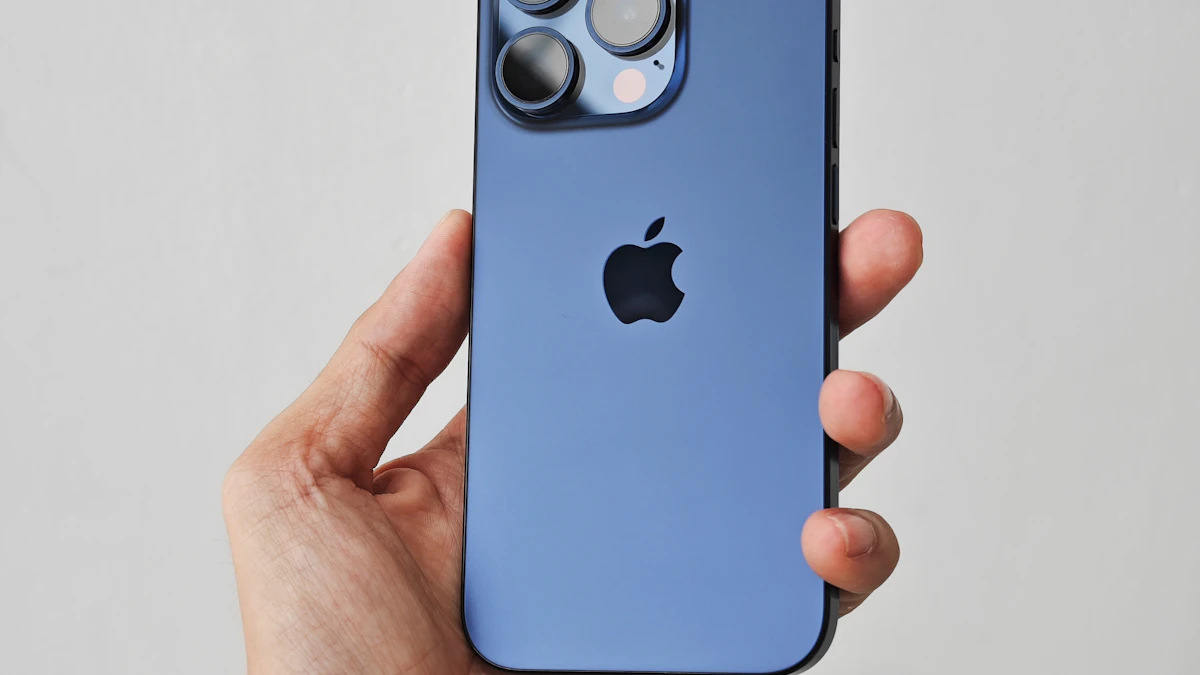
Most people set the iPhone Action button once, leave it on Silent Mode, and forget it exists. That's a waste of the most reachable button on the phone. It sits on the upper left side, right where your index finger or thumb rests, and it can open the camera, turn on the flashlight, start a voice memo, or run a shortcut you built yourself. This guide sorts the options by what you actually need, so you can pick one and stop wondering.
How we chose these Action button setups
We didn't run hands on tests for this guide. The picks below come from Apple's own iPhone User Guide article on the Action button and its Shortcuts guide, both written for iOS 27, plus the questions people type into Google most often about the button ("shortcuts", "ideas", "multiple actions", "not working"). We matched each built in option to a common need and noted the trade offs Apple's documentation points to. Every option here is free and built into iOS, so there's nothing to buy. Prices and model availability are as of November 2026.
Which iPhones have the Action button
Before you spend time on ideas, check that your phone has one. According to Apple's Identify your iPhone model page, the Action button is on these models:
- iPhone 15 Pro and iPhone 15 Pro Max
- iPhone 16, 16 Plus, 16 Pro, 16 Pro Max and iPhone 16e
- iPhone 17, 17 Pro, 17 Pro Max, iPhone Air and iPhone 17e
- iPhone 18 Pro and iPhone 18 Pro Max
The foldable iPhone Duo is the odd one out. Apple's listing for it mentions a side button with Touch ID and the Camera Control, but no Action button. If you own a Duo, the ideas below won't apply to you.
How to change what the Action button does
The setup takes under a minute:
- Open the Settings app.
- Tap Action Button.
- Swipe left or right through the options. The name of each one appears below the row of dots.
- If an option has extra choices (Focus, for example), tap the menu button below it and pick one.
- Leave Settings. The change saves on its own.
To use it, press and hold the button. A quick tap does nothing, which is deliberate, so you don't trigger things in your pocket. For toggles like Silent Mode, pressing and holding again flips the setting back.
One catch trips people up. Apple notes that Controls, Shortcut and Accessibility need a specific choice underneath them. If you swipe to Shortcut but never tap Choose a Shortcut, the button does nothing at all.
Best for people who miss photos: Camera
If you've ever fumbled for the camera while your kid or dog did something funny, set the Action button to Camera. A long press opens the Camera app, so you skip hunting for the icon.
Who it's for: parents, pet owners and anyone who shoots quick moments.
Downsides: on most newer iPhones (the 16, 16 Plus, 16 Pro, 17 lineup, Air and 18 Pro models), Apple's model guide lists a separate Camera Control on the lower right side. If your phone has that, assigning Camera to the Action button means you have two camera buttons. The iPhone 15 Pro, 16e and 17e don't have Camera Control, so Camera is a stronger pick on those.
Best for nights and dark rooms: Flashlight
Flashlight is the pick that people tend to keep once they try it. Press and hold to turn it on, press and hold again to turn it off. No swiping down for Control Center while juggling keys at the front door.
Who it's for: dog walkers, commuters, anyone who digs through bags in the dark.
Downsides: it's easy to switch on by accident in a tight pocket, so glance at the back of your phone if it feels warm.
Best for meetings and quiet places: Silent Mode or Focus
Silent Mode is the default and mimics the old Ring/Silent switch. It switches between Silent and Ring for calls and alerts. If you work in meetings, classrooms or hospitals, it's still a solid choice.
Focus is the smarter version. Instead of muting everything, it can turn on a specific Focus such as Do Not Disturb or one you set up for work, so people you've allowed can still reach you.
Who it's for: anyone who needs to go quiet fast without missing a call from family.
Downsides: Focus only works well if you've set up your Focus modes first. If you haven't, start with Silent Mode.
Best for students and note takers: Voice Memo
Set the button to Voice Memo and a long press starts recording right away. It's handy for a lecture, a parking spot, a grocery list you think of while driving, or an idea you'll forget in ten seconds.
Who it's for: students, journalists, and people who think out loud.
Downsides: always tell people when you're recording them, and check your state's consent rules before recording a conversation.
Best for travelers: Translate
Translate gives you a fast route to Apple's translation tools. It's meant for those moments at a counter or in a taxi when typing is too slow.
Who it's for: frequent travelers and people with family who speak another language.
Downsides: if you only travel once a year, you'll probably switch it back afterward. That's fine. Change it before the trip and reset it when you're home.
Best for curious people: Recognize Music and Visual Intelligence
Recognize Music runs Shazam, so a long press names the song playing in a store or restaurant.
Visual Intelligence lets you point the camera at a place or object to learn more about it. Apple says it requires Apple Intelligence on an iPhone 15 Pro, 15 Pro Max, or an iPhone 16 model or later.
Who it's for: people who always want to know what they're looking at or listening to.
Downsides: Visual Intelligence depends on Apple Intelligence being turned on, which uses storage. If space is tight, see our guide to clearing iPhone storage.
Best for low vision or small text: Magnifier and Accessibility
Magnifier turns the camera into a zoomable magnifying glass for menus, receipts and medicine labels. The Accessibility option lets you pick a specific feature to trigger, and remember you must choose one or the button stays idle.
Who it's for: older users, anyone with low vision, and people who read a lot of fine print.
Best for power users: Controls and Shortcut
This is where the Action button gets interesting. Controls lets you assign one of the controls you'd normally find in Control Center. Apple's Control Center guide names examples like Airplane Mode, Do Not Disturb and AirDrop.
Shortcut goes further. In Settings > Action Button, swipe to Shortcut, tap Choose a Shortcut, and pick one from the Shortcuts app. It can open any app or run a chain of steps you built. If you use an AI assistant app a lot, a shortcut that opens it can be useful; our guide on using ChatGPT on iPhone covers the app side.
How to get multiple actions from one button
People often search for ways to make the Action button do more than one thing. Apple's guide describes a single gesture, press and hold, and doesn't list a double press setting. The workaround is a shortcut that uses the Choose from Menu action. Apple says this action lets you decide what a shortcut does when it runs, picking one option from a list. Build a shortcut with a menu (Flashlight, Voice Memo, open Calculator, for example), assign it to the button, and every press gives you a small menu.
Downsides: a menu adds a tap, so it's slower than a single dedicated action.
Setups to skip
- No Action. Unless the button keeps going off in your case, there's little reason to switch it off.
- Camera on a phone with Camera Control. You already have a dedicated button for that.
- A shortcut you haven't finished. If the shortcut errors out, the button feels broken. Test it from the Shortcuts app first.
If the Action button seems to do nothing
Check three things first. Make sure you're pressing and holding, not tapping. Go back to Settings > Action Button and confirm that Controls, Shortcut or Accessibility has a specific choice under it. And check that a thick case isn't blocking the button. If your screen also stops reacting, our guide to an iPhone screen not responding to touch walks through restarts and resets.
Quick checklist before you pick
- Confirm your model has an Action button (not iPhone Duo).
- Decide whether you already have Camera Control.
- Pick the one thing you reach for most each day.
- If you need two or three things, build a Choose from Menu shortcut.
- Test it with a press and hold, not a tap.
Not sure what to choose? Start with Flashlight for a week. If you never use it, swap it. Changing your mind costs nothing, and you'll find more gadget guides on our Gadgets page if you're setting up a new phone, including how to move everything from your old iPhone.
Sources
Share this story
Spotted an error? Tell us