Key takeaways
- A fake pop up that tells you to call a phone number is a scam, since Microsoft and the FTC say real security warnings never ask you to call.
- The Microsoft Defender Antivirus offline scan restarts your PC and scans before Windows loads, which catches malware that hides while Windows is running.
- If repeated scans fail, Settings > System > Recovery > Reset PC with Remove everything reinstalls Windows and is the most dependable fix.
In this story 9 sections
- Signs your Windows PC really has a virus
- A scary pop up told you to call a number
- Windows Security is out of date or switched off
- A quick scan came back clean but the problems continue
- Malware that hides while Windows is running
- Something keeps blocking the scan or reinstalling itself
- Your browser keeps redirecting or showing ads
- Nothing works: reset Windows
- After the cleanup, or if a scammer got in
If you are wondering how to remove a virus from a computer running Windows, most infections can be cleared with tools that are already on the machine: update Windows Security, run a Full scan, then run the Microsoft Defender offline scan. If the problem survives all of that, resetting Windows is the reliable last step, and this guide walks through each fix in order from quickest to hardest.
Before you start, stop signing in to banking, shopping or email on the affected computer. The FTC advises this in its malware guidance, because some malware records what you type. If you need to check an account in the meantime, use a different device you trust.
Signs your Windows PC really has a virus
Not every slow laptop is infected. The FTC lists symptoms that point to malware rather than an aging hard drive:
- The computer slows down, freezes or crashes more than usual.
- Your browser's home page changes, or you get redirected to sites you didn't pick.
- New toolbars or add ons appear in your browser.
- You see a flood of pop up ads, including on sites that normally don't show them.
- Repeated error messages from Windows, or Task Manager won't open.
- Friends receive emails or social posts you never wrote.
One alone can have ordinary causes. Several at once is a good reason to keep going.
A scary pop up told you to call a number
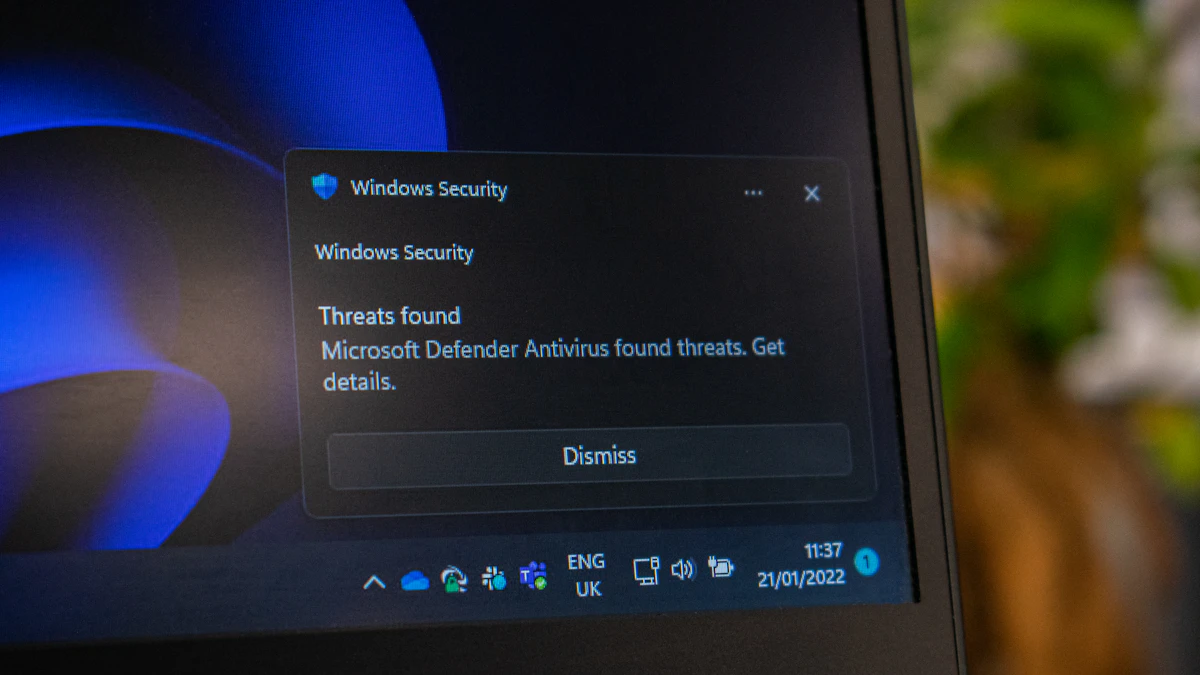
Start here if your screen is showing a full page warning with a phone number, a loud alarm, or a claim that "Microsoft has detected a virus." That message is almost always a scam, not an infection. The FTC is blunt about it: real security warnings never ask you to call a phone number, and legitimate tech companies don't contact you out of the blue about problems with your computer.
Don't call, don't click inside the page, and don't let anyone connect to your PC remotely. Close the browser. If it refuses to close, press Ctrl + Shift + Esc to open Task Manager, select the browser and choose End task. When you reopen the browser, don't restore the previous session.
If you already called and gave someone access or payment, skip ahead to the last section.
Windows Security is out of date or switched off
Your scans are only as good as the definitions behind them. Open the Start menu, type Windows Security and open the app. Select Virus & threat protection, then under Protection updates choose Check for updates. Microsoft's Windows Security help page covers these settings for both Windows 11 and Windows 10.
While you're there, select Manage settings under Virus & threat protection settings and confirm that Real time protection and Tamper protection are turned on. Some malware tries to switch these off. If they keep flipping back to off after you enable them, treat that as a strong sign of infection.
A quick scan came back clean but the problems continue
Quick scans only check the places malware usually hides. To check everything, go to Windows Security > Virus & threat protection > Scan options, choose Full scan and select Scan now. Microsoft describes this option as scanning every file and program on the device, so on a large drive it can take a long time. Leave the PC plugged in and let it finish.
Anything found shows up under Protection history in the same app, where you can see what was quarantined or removed. Restart the computer afterward and check whether the symptoms are gone.
For a second opinion, Microsoft offers the free Microsoft Safety Scanner, a portable tool you download, run once and delete. According to Microsoft's Safety Scanner page, it expires 10 days after download, so grab a fresh copy each time you need it. It doesn't replace your regular antivirus. It's simply another scanner that can catch what the first one missed.
Malware that hides while Windows is running
Some threats, such as rootkits, load early and defend themselves while Windows is active. The answer is the offline scan. In Scan options, choose Microsoft Defender Antivirus (offline scan) and select Scan now.
Save your open work first. Microsoft explains that the PC restarts, loads Microsoft Defender Offline in the Windows Recovery Environment, scans before Windows starts, then restarts again on its own when the scan finishes. Because Windows isn't running, persistent malware has a much harder time hiding. Check Protection history afterward to see the results.
Something keeps blocking the scan or reinstalling itself
If malware stops Windows Security from opening, or reappears after removal, try Safe Mode with Networking. It loads Windows with only basic drivers, plus the network access you need to update definitions or download the Safety Scanner.
According to Microsoft's startup settings guide, once you're in the Windows Recovery Environment, select Troubleshoot > Advanced options > Startup Settings > Restart. After the reboot, press 5 or F5 for Safe Mode with Networking (4 or F4 gives plain Safe Mode). If your drive is encrypted, have your BitLocker recovery key ready.
In Safe Mode, run the Full scan or the Safety Scanner again. Then open Settings > Apps > Installed apps and uninstall anything you don't recognize or didn't install, especially programs that appeared around the time the trouble began. A normal restart takes you back out of Safe Mode.
Your browser keeps redirecting or showing ads
Browser hijackers often live in extensions rather than in Windows itself, so a clean scan doesn't always fix them.
In Microsoft Edge, select Extensions next to the address bar (or Settings and more > Extensions), then Manage extensions. Turn off or remove anything unfamiliar using Remove from Microsoft Edge.
In Google Chrome, Google's help page on unwanted ads and malware says to go to More > Extensions > Manage extensions and keep only the ones you trust. If the hijack persists, go to More > Settings > Reset settings > Restore settings to their original defaults > Reset settings. Google recommends removing unwanted programs from your computer before resetting the browser.
Nothing works: reset Windows
When scans keep finding the same threat, or the PC still misbehaves after every fix above, reinstalling Windows is the most dependable cure. Back up your documents and photos first, and note your BitLocker key if your drive is encrypted.
On Windows 11, open Settings > System > Recovery and select Reset PC next to Reset this PC. Microsoft's reset guide describes the choices:
- Keep my files reinstalls Windows and removes apps and settings, but keeps your personal files.
- Remove everything wipes files, apps and settings. This is the safer pick after a serious infection, as long as your backup is complete.
- Cloud download fetches a fresh copy of Windows from Microsoft, which helps if local system files may be damaged.
- Local reinstall uses files already on the PC and is faster on a slow connection.
The screen may go black for a long stretch during the reset, sometimes over 15 minutes. Don't restart it yourself, as Microsoft warns that can make the reset fail. Scan any backup with Windows Security before you copy files back.
After the cleanup, or if a scammer got in
Once the PC is clean, change your passwords from a device you trust and turn on two factor authentication, starting with email and banking. Our guide to protecting your online accounts in 10 minutes walks through the order, and a password manager makes unique passwords painless.
If you gave a tech support caller remote access or paid them, contact your bank or card issuer right away, uninstall any remote access software they set up, and report it to the FTC at ReportFraud.ftc.gov. The FBI's Internet Crime Complaint Center at ic3.gov also takes reports of online fraud. If personal details were stolen, IdentityTheft.gov has a recovery plan.
If the computer is still under warranty, or you'd rather not reset it yourself, the FTC suggests going to the manufacturer or a repair service you already know and trust, never one that found you through a pop up. Phones need a different approach, covered in our guides to removing a virus from Android and removing a virus from an iPhone. More security how tos live in our Tech section.
One last check: once everything looks normal, open Windows Security a week later and look at Protection history. A clean record there is the best sign the problem is truly gone.
Sources
- FTC: Malware, how to protect against, detect and remove it
- FTC: How to spot, avoid and report tech support scams
- Microsoft Support: Virus and threat protection in the Windows Security app
- Microsoft Learn: Microsoft Safety Scanner
- Microsoft Support: Windows startup settings
- Microsoft Support: Add, turn off or remove extensions in Microsoft Edge
- Google Chrome Help: Remove unwanted ads, pop-ups and malware
- Microsoft Support: Reset your PC
- FTC ReportFraud
- FBI Internet Crime Complaint Center
Share this story
Spotted an error? Tell us