Key takeaways
- The FTC says public WiFi is usually safe because most websites encrypt traffic, but encryption will not protect you from a scam site itself.
- Confirming the exact network name with staff or signage is the best defense against look alike hotspots at airports and hotels.
- The FBI advises against making purchases or other sensitive transactions on public networks, and the FCC says your cell data plan may be more secure.
In this story 6 sections
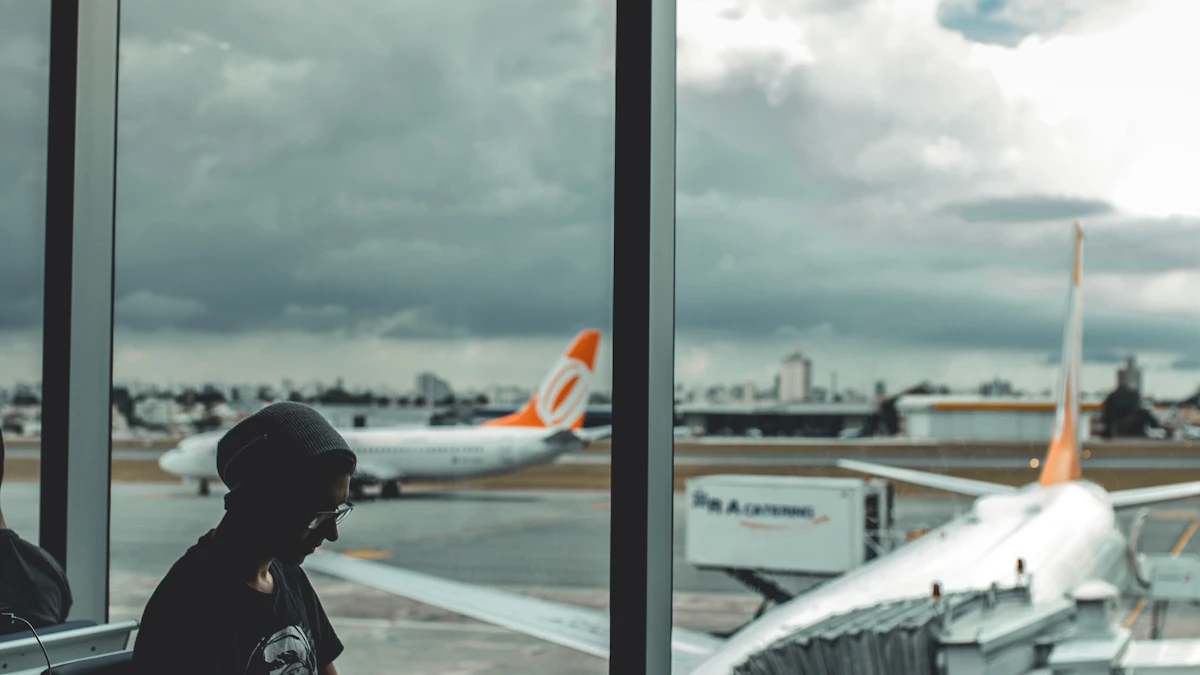
You have 40 minutes before boarding, your mobile data is almost used up, and the terminal network says "Free Airport WiFi." So is it safe to use airport wifi? For most everyday browsing, yes. The Federal Trade Commission says connecting through a public network is usually safe now, because most websites encrypt the data moving between your device and their servers. The real risks are narrower than they used to be: fake hotspots set up to look official, sketchy login pages, out of date devices, and doing sensitive things on a connection you can't vouch for. The same logic applies to hotel and cafe networks.
Red flags on an airport or hotel network
Watch for these before and after you tap Join:
- Two or more networks with nearly the same name, such as "Airport_Free_WiFi" and "Airport Free WiFi 2." The FCC warns that look alike hotspots can be imposters and suggests asking staff which one is real.
- A login page that asks for far more than it should. An airport portal might ask you to accept terms or watch an ad. It should not ask for your email password, bank login or card number just to get online.
- Browser warnings about a certificate or an insecure connection on a site you visit all the time.
- A site address without the lock icon or "https" when you are about to type a password. The FTC tells people to look for one of those to the left of the web address.
- Pop ups pushing you to install an app, a "security update" or a browser extension before you can browse.
- A network with no password that appears in a place that shouldn't have one, like a gate area at an airport that only advertises a single official network on its signs.
Before you connect: the checklist
- Confirm the network name. Check airport signage, the airport's website or ask an information desk. At a hotel, ask the front desk for the exact name and password. This is the single most useful step against fake hotspots.
- Update your phone and laptop. The FTC recommends keeping your operating system, browser and security software current, with automatic updates on.
- Turn on two factor authentication for your important accounts. If someone does grab a password, a second code or passkey blocks most takeovers. Our guide to securing your Google account walks through it for Gmail.
- Use a password manager so you never type the same password on two sites. If you are on the fence, read whether you need a password manager.
- Check your phone's private address setting. On an iPhone, Apple's support page says to open Settings, tap Wi-Fi, then tap the More Info button next to the network. On iOS 18 or later you'll see Private Wi-Fi Address with Off, Fixed or Rotating. Apple notes that Rotating changes the address about every two weeks, and it is used by default on networks with weak or no security. That makes your device harder to track from one hotspot to the next.
- Stop automatic joining. The FCC advises setting your phone so it does not connect to nearby networks on its own.
- Decide if you want a VPN. The FCC suggests a VPN for people who use public Wi-Fi often. It encrypts everything leaving your device, including traffic from apps that might not protect it well. Not sure it is worth paying for? See do I need a VPN.
While you are on the network
- Look for https on every site where you sign in or pay. The FCC also suggests a browser add on that forces encrypted connections.
- Save banking and big purchases for your cell data. The FBI says not to conduct sensitive transactions, including purchases, on a public network. The FCC adds that your cellphone data plan may be more secure than Wi-Fi for sensitive information. If your phone has a hotspot feature, you can share that connection with your laptop instead.
- Remember what encryption doesn't cover. The FTC points out that https protects your data on the way to a site, but it won't protect you from a scam site itself.
- Don't open surprise attachments. The FBI advises opening attachments only when you were expecting the file and have checked the sender's address.
- Turn off Bluetooth when you don't need it. The FCC recommends switching it off and using hidden rather than discoverable mode in public places.
Is airport wifi OK for work, banking or an iPhone?
For work, follow your employer's rules first. Many companies require a VPN on any network that isn't yours, and that requirement exists for a reason. For banking, use cell data when you can, as the FBI and FCC both suggest. If you must use Wi-Fi, use your bank's official app, never a link from a text or email. For iPhone users, the risks and fixes are the same as on Android: confirm the network, keep iOS updated, leave Private Wi-Fi Address on and watch for certificate warnings. Using a VPN on top of all this adds another layer, but it does not make a fake login page safe.
After your trip: forget the network
Saved networks stay on your phone and can be joined again automatically when a network with the same name shows up. Clear out the ones you won't use again.
On Android, Google's help page lists the steps: open Settings, tap Network and internet, then Internet, touch and hold the saved network, and tap Forget. On an iPhone, open Settings, tap Wi-Fi, and use the More Info button next to the network to manage it. Apple notes that forgetting a network also clears the private address your phone used for it.
If you think something already went wrong
Maybe you typed a password into a login page that now looks off, or you got a sign in alert you don't recognize right after using a hotspot. Move quickly, in this order:
- Disconnect from the network and switch to cell data.
- Change the password for the affected account from a connection you trust, then change it anywhere else you reused it.
- Sign out of other sessions in the account's security settings and confirm two factor authentication is on.
- Call your bank or card issuer using the number on the back of your card if you entered payment details.
- Run your device updates and a security scan, and remove any app or extension a pop up pushed you to install. If your phone acts strangely afterward, our guide on how to know if your phone is hacked has the warning signs.
- Report it. File a report with the FTC at ReportFraud.ftc.gov. If you lost money or were the victim of an online crime, the FBI asks people to file with the Internet Crime Complaint Center. Our guide to reporting a scam explains which agency handles what.
For the official guidance behind this checklist, see the FTC's public Wi-Fi advice and the FCC's tips for protecting yourself online. More security how tos live in our Tech section.
One last check before your next flight: open your phone's Wi-Fi list and count the saved networks. If you see airports, hotels and cafes from trips years ago, delete them now, so your phone can't rejoin a look alike network you never chose.
Sources
Share this story
Spotted an error? Tell us