Key takeaways
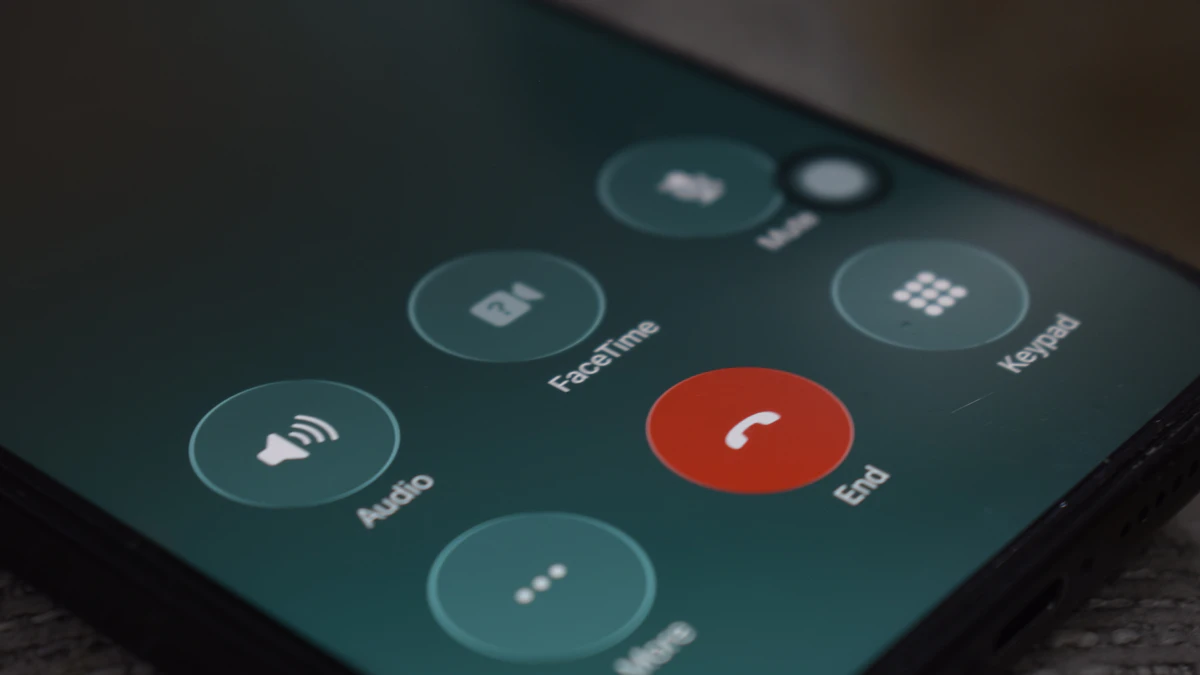
- Xbox Cloud Gaming players on supported smart TVs can now use an Android or iOS phone as a controller, with the controls opening in the phone's browser.
- In the US, the $49.99 Xbox Nano Controller can test a cloud connect mode that links over Wi-Fi straight to the game server instead of Bluetooth.
- Both features are previews: you turn on Preview Features under Settings, then Account, and Microsoft warns that supported games and devices may be limited.
In this story 5 sections
You can now play Xbox games on a smart TV with nothing in your hand but your phone. Microsoft started rolling out an Xbox phone controller preview for Xbox Cloud Gaming on November 4, and it arrives alongside a second test that lets the new Xbox Nano Controller skip Bluetooth and talk to the cloud over your home Wi-Fi.
Both features are labeled previews. Microsoft says availability, supported games and supported devices may be limited while it collects feedback. Still, if you stream Xbox games to a TV, both changes affect how you set things up this month.
Who can use the phone controller preview today
The phone option is for people who stream games through the Xbox app built into a supported smart TV. According to the Xbox Wire announcement, it works with a supported Android or iOS phone, in countries where Xbox Cloud Gaming is offered, and it is rolling out gradually on supported TVs.
The controls load in your phone's browser. There is no extra app to install, and Microsoft says some games will get touch layouts tailored to how they play. Microsoft keeps a list of verified TVs on its support site, so check it before you assume your set qualifies.
If you already own a gamepad, nothing changes for you. The phone option only appears when you launch a game without a physical controller connected.
The Nano Controller test is US only
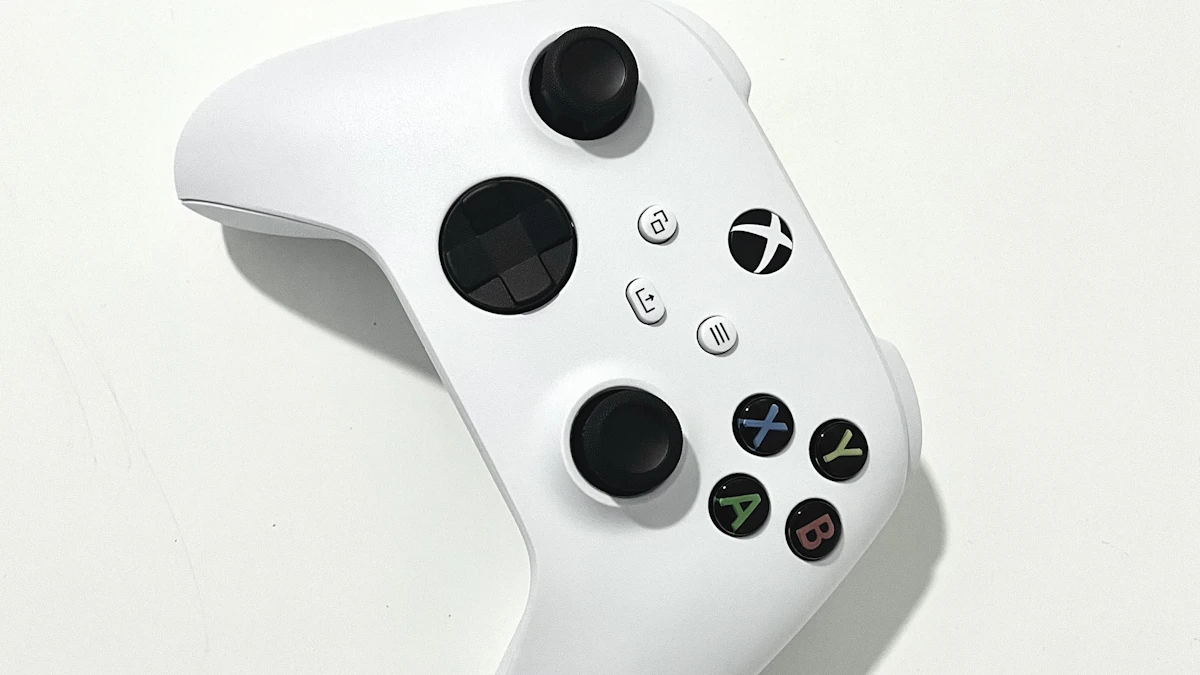
The second preview is narrower. In the United States, owners of the Xbox Nano Controller can try a mode Microsoft calls cloud connect. Instead of pairing with the TV over Bluetooth, the controller joins your Wi-Fi network and connects straight to the cloud server running your game. Microsoft says this can make gameplay feel more responsive, and Engadget notes the goal is to cut input lag.
That is a meaningful shift for a controller that launched without it. When Microsoft announced the Nano in October, Windows Central reported that it relied on Xbox Wireless and Bluetooth, with no direct Wi-Fi link for cloud play. The pad is about 5 inches long, weighs 3.5 ounces, has a rechargeable battery and an extra reprogrammable Action Button, and lists at $49.99.
For now, cloud connect works only on supported smart TVs and on the web. Microsoft calls it an early test and says it will not work with every cloud gaming experience yet.
Engadget pointed out that the defunct Google Stadia controller used the same trick, and Stadia also let players use a phone as a TV controller. Microsoft is borrowing two ideas that streaming players already liked.
How to turn on each Xbox preview
Here is the setup, based on Microsoft's instructions.
- Update the TV app. Open the latest version of the Xbox experience on your supported smart TV.
- Enable previews. Go to Settings, then Account, and turn on Preview Features.
- Launch a game with no gamepad connected. You should see an option to use your phone for that session. Follow the prompt on screen to open the controls in your phone's browser.
- Set up the Nano for cloud connect (US only). Use the Xbox beta app on Android, or the Xbox Accessories app on a Windows PC, and follow the steps to put the controller on your Wi-Fi. The PC route requires enrollment in the Xbox Insider program.
- Sign in with the same account. Open Xbox Cloud Gaming on your TV or in a web browser using the account you used during setup, and the Nano should connect over Wi-Fi.
- Send feedback. On the phone controller, tap the Xbox icon in the top left and choose Give Feedback. You can also leave feedback from the guide on your TV.
Which games suit a touchscreen
Be realistic about what a phone can do. A glass screen gives you no buttons to feel, so you will be glancing down more than you would with a gamepad. Engadget's take is that phone controls fit turn based games better than fast action games or titles with complex controls. Netflix already offers a similar phone controller option for its TV games, and the same rule applies there.
A few practical points help:
- Keep your phone charged or plugged in. Long sessions with the screen on drain the battery quickly, and our tips on extending Android battery life apply here too.
- If your phone gets warm during play, take breaks. Our guide on why phones run hot explains what is normal.
- Use the same Wi-Fi network for the TV and the phone where you can, and keep the router close to the TV for steadier streaming.
When a real gamepad is still worth buying
The phone option is best treated as a backup for when the controller is in another room, or a way to let a guest join without buying more hardware. For regular play, a physical pad still wins on comfort and precision.
If you game on your phone as well, our roundup of the best phones for gaming covers screens and battery sizes that hold up to streaming. And if your TV is one of the cheap streaming boxes many households plug in, read our report on the Android TV box botnet before you sign into any accounts on it.
Microsoft has not said when either preview will become a standard feature or reach more countries. Engadget also notes that new Xbox Cloud Gaming time limits are kicking in this month, so it is worth checking your plan before you settle in for a long session. More streaming and accessory news lives on our gadgets page.
Share this story
Spotted an error? Tell us