Key takeaways
- Apple lists a dirty or damaged charging port as a possible cause of iPhone charging alerts and tells owners to remove any debris from the port.
- Apple advises against compressed air, liquids in openings and inserting cotton swabs or paper towels into the connector, so a wooden or plastic pick is the safer tool.
- If a liquid detection alert appears, Apple says to unplug everything, tap out the water and let the iPhone dry for at least 30 minutes and up to a day before charging.
In this story 6 sections
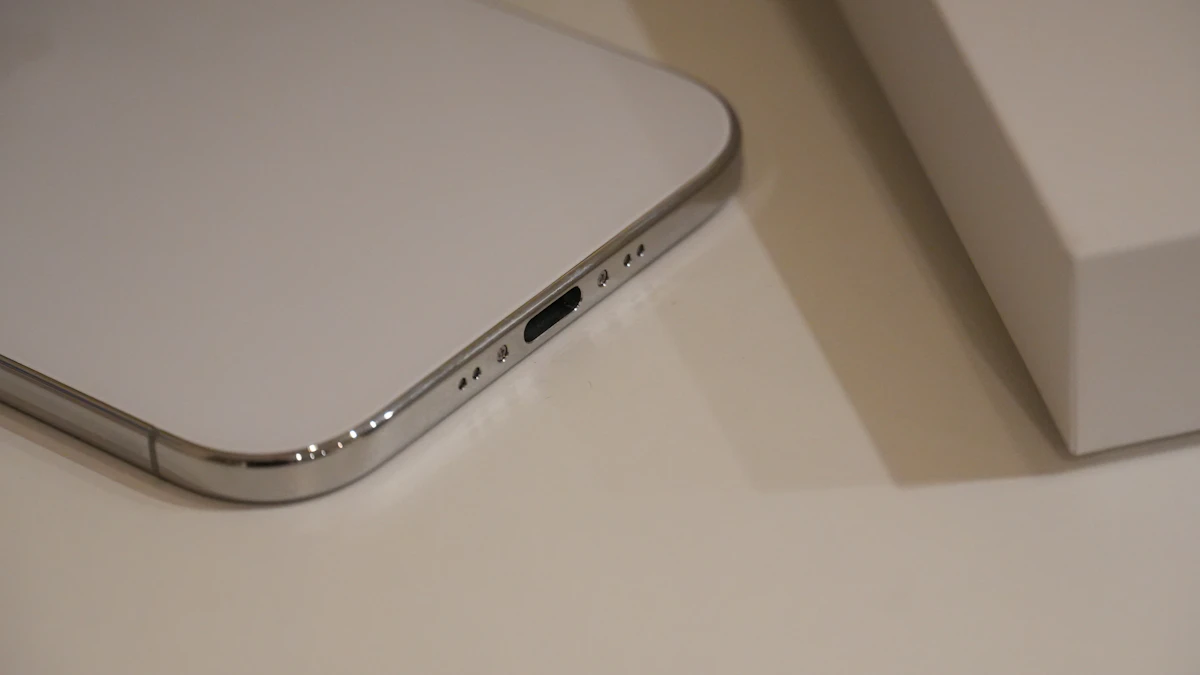
If your cable keeps falling out, only charges at a certain angle, or your iPhone shows an accessory alert, the port is often packed with pocket lint. This guide shows how to clean an iPhone charging port without scratching the contacts or pushing the gunk deeper. It works for both the Lightning port on iPhone 14 and earlier and the USB-C port on iPhone 15 and later. Plan on about five minutes for a dry port, or up to a day if the port got wet.
Apple's own won't charge troubleshooting page lists a dirty or damaged charging port as a possible cause of charging alerts, and its step five is simply to remove any debris from the port and plug the cable back in firmly. The tricky part is doing that safely, because Apple's support pages also list several things you should never put in or near that opening.
Before you start
- A good light. A flashlight or a second phone's torch helps you see the back wall of the port.
- A nonmetal pick. A wooden or plastic toothpick, or a small soft brush with nonmetal bristles.
- A soft, lint free cloth, such as a microfiber lens cloth.
- About five minutes, plus your iPhone powered off and unplugged.
Leave these out: paper clips, safety pins, SIM tools, needles, compressed air cans and liquids. The reasons are covered below.
Check whether the port is the real problem
1. Rule out the cable and charger
Try a different cable and power adapter first. Apple says to check your charging cable and USB adapter for signs of damage and not to use damaged accessories. If a second cable charges normally, your port is probably fine and the original cable is the culprit.
2. Look inside the port
- Hold the iPhone with the bottom edge facing you.
- Shine a light straight into the opening.
- Look for gray or dark matter pressed against the back wall. Lint compacts into a flat felt layer over time, so it can look like part of the phone.
A quick test: plug the cable in and see how far it goes. If the metal tip sits a millimeter or two short of fully seated, or it wiggles loose with a light tug, something is in the way.
3. Check for a liquid alert
If you see "Liquid Detected in USB-C Connector," "Liquid detected in Lightning Connector" or "Charging not available," stop here and skip to the wet port section. Apple warns that charging while the connector is wet can corrode the pins and cause permanent damage.
Clean the port, step by step
4. Power off and unplug
Apple's How to clean your iPhone page starts with the same instruction for every model: unplug all cables and turn off your iPhone. Working on a powered port with any tool is asking for trouble.
5. Loosen the lint with a nonmetal pick
- Insert the tip of a wooden or plastic toothpick gently along the inside wall of the port.
- Scrape lightly toward the opening, never toward the back.
- Work around the edges first, then the back wall. With USB-C, keep clear of the thin center tongue that holds the contacts.
- Tap the phone, port facing down, against your palm to shake loose pieces out.
Go slowly. You are lifting the lint out in layers, not stabbing it. If the tip of the toothpick splinters, stop and check that no wood is left behind.
Why no metal? Apple's port care guidance for Mac laptops says not to use metal objects to clear debris because they can short the connector and cause damage. The same logic applies to a phone port, which is why the paper clip and safety pin tricks you see in search suggestions are a bad idea.
6. Brush out what is left
A small, soft, nonmetal brush (a clean, dry toothbrush with soft bristles works) can sweep out the fine dust the pick leaves behind. Brush across the opening, then tap the phone against your palm again.
7. Wipe the outside and test
Wipe the area around the port with a soft, dry, lint free cloth. Then plug in your cable. It should click in fully and stay put. Leave it on the charger for a few minutes and confirm the battery icon shows it charging. If you want to see how your battery itself is holding up, our guide to reading iPhone battery health numbers explains what each figure means.
Things that seem helpful but can damage the port
Search suggestions are full of shortcuts. Here is what Apple's support pages actually say about the popular ones.
- Compressed air. Apple's iPhone cleaning page says plainly, "Don't use compressed air." Its Mac port guidance adds that air can drive debris further inside the port.
- Rubbing alcohol in the port. Apple allows 70 percent isopropyl alcohol wipes only on the exterior surfaces and says to avoid getting moisture in any openings. Don't drip or swab alcohol into the port.
- Hot glue, putty or tape. None of Apple's pages mention these, but anything sticky can leave residue on the contacts that a pick cannot reach.
- Cotton swabs and paper towels. Apple's liquid detection page specifically says not to insert these into the connector. They shed fibers too, which is the problem you are trying to fix.
When it still does not charge
If the port was wet
Apple's liquid detection guide gives a clear routine:
- Unplug the cable from the iPhone and from the adapter.
- Tap the iPhone gently against your hand with the connector facing down.
- Leave it in a dry area with some airflow for at least 30 minutes, then try again.
- If the alert comes back, leave it to dry for up to a day.
Apple also says not to dry it with an external heat source (a hair dryer counts), not to use compressed air and not to put the phone in a bag of rice, since small rice particles can get inside. If you have a Qi certified charger, Apple says you can charge wirelessly once the back of the phone is dry.
If the alert shows up with no liquid
Apple notes that if an alert appears every time you connect one specific cable or accessory, that accessory may be damaged and you should contact its maker. If it happens with every Apple Lightning or USB-C cable, the phone may need service.
If the port is clean but charging still fails
Restart the iPhone, try another cable and adapter, and leave it plugged in for half an hour. Our list of fixes for a phone that will not charge walks through the software side. A phone that charges but runs warm may have a different issue, covered in why your phone gets so hot.
Getting it repaired
If the cable still won't seat after a careful cleaning, the contacts look bent or corroded, or nothing charges at all, Apple says you might need service. You can start a service request online through Apple Support or visit an Apple Store or Apple Authorized Service Provider. Mention that you already cleaned the port with a nonmetal tool so the technician knows where to start.
Keep it from filling up again
Most port lint comes from pockets and bags. A case with a port cover, a quick look into the opening when you change cases, and avoiding public USB ports you don't trust (see whether airport charging stations are safe) all help. For more phone how tos, browse our Gadgets section. A light check every few months takes ten seconds and saves you from the slow, angled cable dance later.
Sources
- Apple Support: If your iPhone or iPod touch won't charge
- Apple Support: How to clean your iPhone
- Apple Support: If you see a liquid-detection alert on your iPhone
- Apple Support: Mac laptops troubleshooting input/output issues
- Apple Support: How to clean your Apple products
- Apple Support: About iPhone charge speeds
Share this story
Spotted an error? Tell us