Key takeaways
- Shut the laptop down and unplug it, then dampen a lint free microfiber cloth with water instead of spraying anything onto the screen.
- Apple allows 70 percent isopropyl alcohol for stubborn smudges and disinfecting, but window cleaner, ammonia, acetone, bleach and hydrogen peroxide should never touch the display.
- For crumbs under the keys, hold the laptop at a 75 degree angle and sweep compressed air left to right, then repeat on each side.
In this story 7 sections
Fingerprints, a sneeze, a film of dust that only shows up when the screen goes dark: most laptop screens need a wipe every week or two. Knowing how to clean a laptop screen properly takes about five minutes for the display and another ten for the keyboard, and the method is the same whether you own a MacBook, a Windows ultrabook or a Chromebook. The main thing is to use less liquid than you think and never let it reach the panel edges.
This guide follows the cleaning advice in Apple's support documents, which spell out exactly which liquids are safe, and notes where other manufacturers differ. If your laptop came with its own care card, that card wins.
Before you start: what to grab and what to leave in the cupboard
- A soft, lint free microfiber cloth. Apple's guidance rules out abrasive cloths, towels and paper towels, and Lenovo's laptop screen guide also warns against paper towels.
- Plain water, ideally distilled so it leaves no mineral spots.
- 70 percent isopropyl alcohol wipes (or 75 percent ethyl alcohol wipes) for germs and stubborn smudges. Apple says these are fine on hard, nonporous surfaces such as the display and keyboard.
- A can of compressed air with a straw, only if you plan to clear crumbs from the keys.
Leave out window cleaner, household sprays, anything with ammonia or acetone, bleach and hydrogen peroxide. Apple's cleaning guide warns against all of them, and a screen's coatings are easy to wear down and impossible to restore.
Stage 1: Power down and get the laptop ready
- Save your work and shut the laptop down completely. Sleep mode is not enough, because a tap on the keyboard or trackpad can wake it while you clean.
- Unplug the charger and any cables, drives or dongles.
- Let it cool for a few minutes if you were just using it. A warm screen dries liquid fast and leaves streaks.
- Open the lid all the way and rest the laptop on a flat surface, so the hinge takes no strain while you press on the display.
Stage 2: Clean the laptop screen
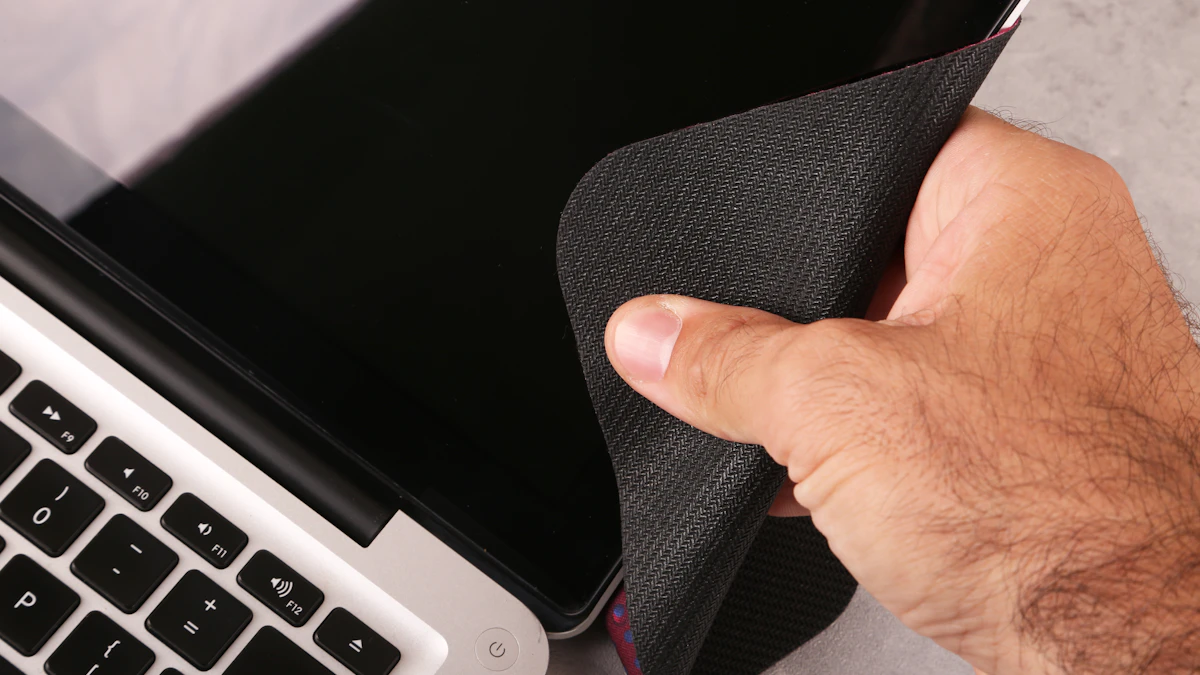
- Dry wipe first. Run a dry microfiber cloth across the screen in light, straight passes from top to bottom. This lifts most dust and stops grit from scratching the surface when you add moisture.
- Dampen the cloth, not the screen. If marks remain, wet a corner of the cloth with water only. It should feel barely damp, not wet. Apple and Lenovo both say never to spray liquid directly onto the display.
- Wipe with gentle pressure. Use the damp corner on the smudge, then follow straight away with a dry part of the cloth. Lenovo's guide warns against pressing hard against the display, so let the cloth do the work.
- Use alcohol only for stubborn marks. For greasy fingerprints that water will not shift, Apple allows a cloth or wipe with 70 percent isopropyl alcohol on a laptop display. Wring out any excess and work in small sections.
- Check at an angle. Turn on a light or tilt the lid, look for streaks, and buff them out with a dry section of cloth.
If your laptop has a nano texture display
Some MacBook Pro models offer a nano texture glass option with a matte, etched surface. Apple has a separate nano texture cleaning page that says to use the Apple Polishing Cloth or another microfiber cloth made for electronic displays. For hard to remove smudges, and only now and then, you can moisten that cloth with 70 percent isopropyl alcohol.
Stage 3: Clean the keyboard and trackpad
Keyboards collect far more grime than screens, and the shiny patches on your most used keys are skin oil.
Clear crumbs with compressed air
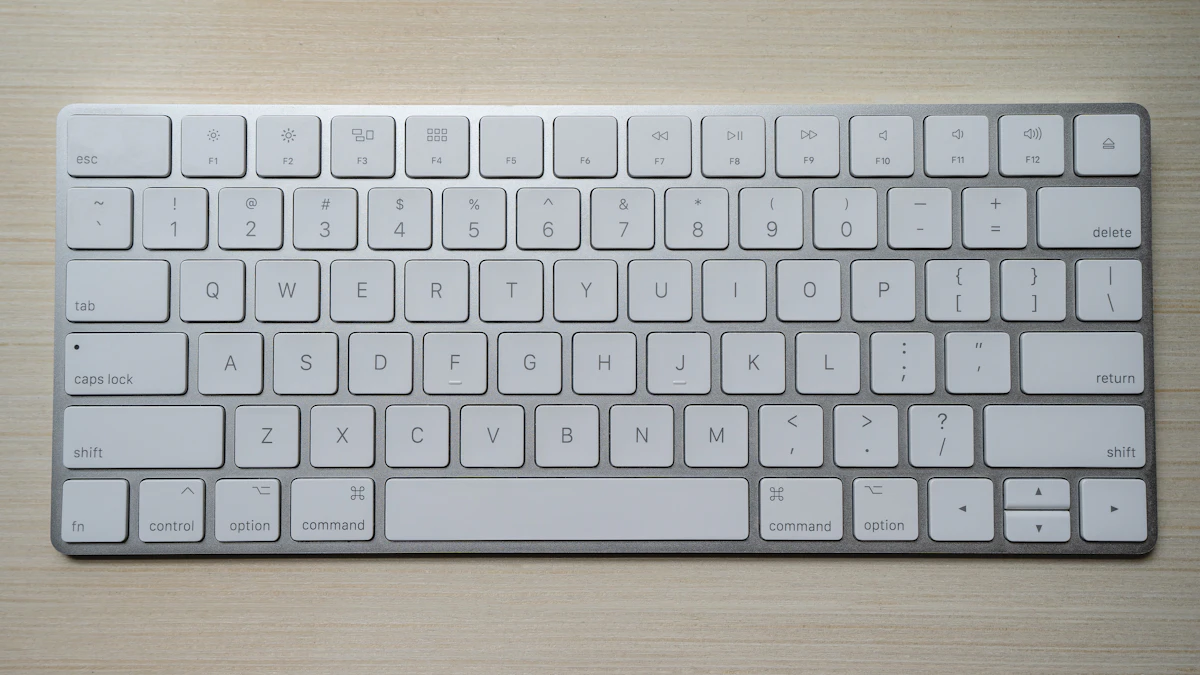
Apple's MacBook keyboard cleaning steps work well on most laptops:
- Hold the laptop at a 75 degree angle, so it is tilted back but not fully vertical.
- Fit the straw to the can and keep the tip about half an inch from the keys. Apple says not to turn the can upside down.
- Spray across the keyboard, or just the sticky keys, in a left to right sweep.
- Turn the laptop onto its right side and spray left to right again.
- Turn it onto its left side and repeat.
Wipe the keys and palm rest
- Lightly moisten a lint free cloth with water and wipe the tops of the keys, the palm rest and the trackpad.
- To disinfect, use a 70 percent isopropyl alcohol wipe on these hard surfaces. Squeeze it first so it does not drip between the keys.
- Do not use the wipes on fabric or leather surfaces, which Apple says can be damaged.
- Let everything air dry for a few minutes before you close the lid. Closing it on a damp keyboard can transfer marks onto the screen.
How to clean a laptop screen without a microfiber cloth
If you have no microfiber cloth on hand, a clean, soft cotton cloth that has been washed without fabric softener is the safest backup, such as an old cotton T shirt. Cotton tends to leave more lint behind, so finish with a dry pass. Avoid paper towels, tissues and kitchen roll entirely. They are rougher than they feel and tend to shed bits of paper onto the glass. Eyeglass cloths are fine if they are clean.
Want to keep your microfiber cloth working? Wash it by hand with a drop of dish soap, rinse well and let it dry on its own. Apple recommends that method for its polishing cloth and says to allow at least 24 hours of drying time.
When cleaning does not fix the problem
Streaks keep coming back. Your cloth is probably dirty or too wet. Switch to a fresh cloth, use less water and buff dry right after each pass.
A cloudy patch will not wipe off. This can be worn coating rather than dirt. Apple notes that the oil repelling coating on its iPad screens diminishes over time, and abrasive rubbing makes that worse. More scrubbing will not help, so leave it.
Spots that look like dirt but move with the image. If marks change when the picture changes, the issue is in the panel, not on it. Stuck pixels, bright patches or lines need a repair service, not a cloth.
Keys still stick or fail after compressed air. Apple's advice is to contact Apple or an Apple Authorized Service Provider. For Windows laptops, contact the maker's support line. Avoid prying off keycaps yourself on thin modern keyboards, since the small clips underneath are fragile.
Liquid got inside. Shut the laptop down, unplug it, turn it upside down on a towel and do not switch it on until a technician has looked at it. Power plus moisture is what causes lasting damage.
How often to clean it
A dry wipe once a week keeps dust from building up, and a damp clean every two to four weeks is plenty for most people. Wipe the keyboard and trackpad more often if you share the laptop or eat at your desk. Regular care is part of getting the most years out of a machine, which our guide on how long a laptop lasts covers, and the same gentle approach applies when you clean an iPhone charging port.
If you are cleaning up an older machine before handing it on, check its battery health too, and browse our gadget guides for more care tips. A quick final check before you close the lid: no damp patches on the keys, no streaks on the glass, and the cloth goes straight in the wash.
Sources
Share this story
Spotted an error? Tell us