Key takeaways
- A current NVMe SSD like the WD_BLACK SN850X is rated at up to 7,300MB/s for sequential reads, while WD Blue desktop hard drives are rated at 150MB/s to 260MB/s.
- Hard drives cost far less per terabyte and scale past 36TB per drive, which keeps them the better choice for backups, NAS and media archives.
- SSD failures can be sudden and hard to recover from, so the drive in your computer should always be paired with a separate backup.
In this story 5 sections
If you are choosing between an SSD and an HDD for your main computer, get the SSD. It boots faster, opens apps faster and has no moving parts to knock loose. The hard drive still earns its place, though, as cheap bulk storage for backups, photo archives and media libraries where capacity matters more than speed. That split is the whole SSD vs HDD story for most people, and the rest of this guide explains why, with numbers from the drive makers themselves.
The key differences between SSDs and HDDs
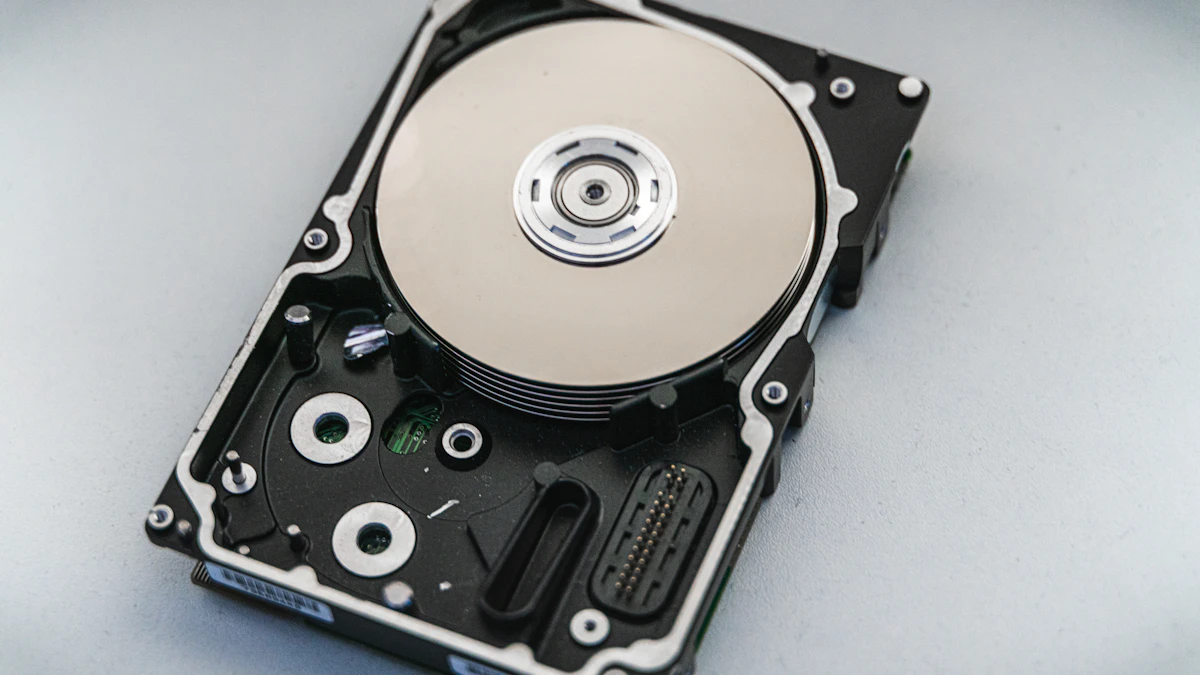
- How they store data: an SSD keeps data on NAND flash memory chips, while an HDD writes it magnetically onto spinning platters read by a moving arm.
- Speed: a current PCIe 4.0 NVMe SSD such as the WD_BLACK SN850X is rated at up to 7,300MB/s for sequential reads. Western Digital's own WD Blue desktop hard drives are rated between 150MB/s and 260MB/s depending on the model.
- Capacity: Western Digital says hard drives can scale past 36TB per drive, while M.2 SSDs typically top out around 8TB.
- Cost per gigabyte: hard drives remain far cheaper per terabyte, which is why they still dominate backup and archive storage.
- Durability: SSDs resist shocks because nothing inside moves. HDDs are more vulnerable to drops, vibration, heat and cold.
- Noise and power: SSDs are silent and usually draw less power. HDDs spin and click, and generally use more.
- Failure and recovery: failed HDDs can often be recovered by a mature data recovery industry. SSD failures can be sudden, and recovery is harder and costlier.
How an SSD works and where it shines
A solid state drive is basically a large bank of flash memory with a controller that decides where each piece of data lives. Kingston, which makes both kinds of drive, notes that NAND flash does not need power to retain data, so nothing is lost when the computer is off. Because there is no platter to spin up and no read head to move, the drive can jump to any file almost instantly.
Think of it like the difference between finding a song on a playlist and finding one on a cassette tape. The SSD just goes to it. The hard drive has to physically get there first.
Strengths of an SSD
The speed shows up everywhere, not just in benchmark charts. Western Digital describes SSDs as delivering superior performance for boot times and application loading, which is exactly where you feel a slow computer. A laptop that takes a minute to become usable on a hard drive is often ready in seconds on an SSD.
Durability is the other big win. With no moving parts, an SSD shrugs off the bumps a laptop takes in a backpack. Western Digital also lists silent operation and low power use among its advantages, which helps on portable machines.
Endurance is better than many people assume. The WD_BLACK SN850X spec page lists a rating of 600 terabytes written (TBW) for the 1TB model and 1,200TBW for the 2TB model, backed by a five year limited warranty. For perspective, writing 600TB means filling that 1TB drive about 600 times over.
Weak spots of an SSD
Price per terabyte is the main drawback. Western Digital cites IDC data showing enterprise SSDs carrying a premium of 7.4x to 9.9x over high capacity enterprise hard drives. Consumer pricing differs, but the pattern is similar: the same money buys far more space on spinning disks.
Flash cells also wear out after a finite number of program and erase cycles. For normal home use, that limit is rarely reached before the computer itself is retired. The more serious concern is how SSDs fail. Western Digital warns that a controller failure can make data suddenly unrecoverable, and professional recovery is significantly more difficult and expensive than with a hard drive. The lesson is simple: an SSD is not a backup.
How an HDD works and where it still wins
Hard drives have been around since the mid 1950s. Inside, one or more platters spin at a fixed speed (commonly 5,400 or 7,200 RPM in desktop models) while an arm moves a read and write head across the surface. That design is old, mature and very good at storing huge amounts of data cheaply.
Strengths of an HDD
Capacity for the money is unmatched. Western Digital's consumer WD Blue line alone runs from 1TB up to 12TB, and its data center drives go much higher. If you shoot a lot of video, keep years of family photos or run a home network storage box, hard drives are the sensible way to hold all of it.
Hard drives also hold up well for large sequential jobs. Western Digital says high performance HDDs deliver strong throughput when moving big files, which is why they remain common in NAS boxes, surveillance recorders and backup systems.
Reliability is measurable, too. Backblaze, a cloud storage company that publishes failure data for its fleet, reported a lifetime annualized failure rate of 1.41% across more than 350,000 hard drives in its Q2 2026 Drive Stats report. That is data center use, not a home PC, but it shows hard drives are far from fragile when they stay put.
When a hard drive does fail, Western Digital notes that recovering data from a mechanical failure is often possible through professional services. That safety net matters for irreplaceable files.
Weak spots of an HDD
Speed is the obvious one. Even the fastest WD Blue desktop drives are rated at up to 260MB/s, a small fraction of what a modern NVMe SSD can do. Using one as the only drive in a laptop makes the whole computer feel sluggish.
Moving parts bring other problems. Kingston points out that hard drives are more prone to mechanical failure from heat, cold, shock and vibration. Western Digital also lists noise from mechanical parts and a higher power draw than SSDs among their drawbacks.
Hard drives also need occasional defragmenting to stay quick, while SSDs need trimming instead. On Windows you do not have to manage either by hand. Microsoft Support explains that Windows optimizes drives once a week by default, defragmenting hard drives and trimming SSDs. To check yours, type "defrag" in the taskbar search and open Defragment and Optimize Drives.
SSD vs HDD for gaming, long term storage and external drives
These three questions come up constantly, so here are direct answers.
For gaming, an SSD is the better choice. Western Digital notes that modern games can exceed 100GB each, and load times drop sharply on an SSD. Frame rates mostly depend on your graphics card, but levels, maps and textures load faster from flash.
For long term storage, hard drives are usually the practical pick because of the cost per terabyte and the more forgiving recovery options. Western Digital lists backups, media libraries, NAS and long term storage as the hard drive's best uses. Whatever you choose, keep at least two copies of anything you cannot replace.
For external drives, a portable SSD makes sense if you carry it around every day, since it is smaller and handles drops better. A desktop external hard drive is the better value if it sits next to your computer and holds backups.
Which drive should you pick?
- Buying or upgrading a laptop: choose an SSD, no question. Our guide on how to choose a laptop covers what else to look for alongside storage.
- Building or upgrading a desktop: put the operating system, apps and games on an SSD. Western Digital suggests a 250GB to 1TB SSD for the system and a hard drive for bulk data, and that combo still works well.
- Reviving an old, slow computer: swapping its hard drive for an SSD is often the single most noticeable upgrade, especially paired with enough memory. See how much RAM you need before you buy.
- Photographers, video editors and data hoarders: work from an SSD, then archive finished projects to large hard drives.
- Home backups and NAS: hard drives give you the most space for the money.
- Gamers: an NVMe SSD for your installed library, with a hard drive for older games you rarely play if space runs short.
Storage is also one of the reasons a computer feels old before its time, so it ties directly into how long a laptop lasts. For more buying help, browse our gadgets coverage.
One last check before you order: confirm which drive slots your computer has. A laptop with only an M.2 slot cannot take a 2.5 inch hard drive, and an older desktop may support SATA but not NVMe. Two minutes with your manual or the maker's spec page saves a return.
Sources
Share this story
Spotted an error? Tell us