Key takeaways
- A portable monitor pays off most for people who travel, study or switch workspaces often, while a regular monitor is the better buy for one fixed desk.
- Single cable USB-C portable monitors need a laptop port that supports DisplayPort Alt Mode or Thunderbolt, so check for the matching symbol before you order.
- Game consoles need a portable monitor with an HDMI input and its own power source, because they cannot power a screen the way a laptop can.
In this story 9 sections
- Are portable monitors worth it?
- Will a portable monitor work with my laptop?
- Do portable monitors need a separate power source?
- Can I use a portable monitor with a MacBook?
- How do I set up a portable monitor on Windows?
- Are portable monitors any good compared with a regular monitor?
- Can you use a portable monitor with a PS5 or Xbox?
- Can a portable monitor work with a phone?
- Is a portable monitor right for students and remote workers?
A second screen in your laptop bag sounds like a luxury until you spend a week flipping between a spreadsheet and an email on one small display. A portable monitor fixes that problem for a lot of people, but not for everyone, and the reasons it fails are usually about ports and power rather than picture quality. Below are the questions people ask most before buying one, answered with specs and setup steps from the manufacturers themselves.
Are portable monitors worth it?
For people who work away from a desk at least a few days a week, yes, a portable monitor is usually worth it. If you travel for work, split time between home and an office, study in libraries, or present to clients, a slim second screen gives you room to keep a reference open while you type in another window.
It is a weaker buy if your laptop sits on the same desk every day. A full size desktop monitor will give you a bigger, brighter screen for the same desk space, and you never pack it.
A quick way to decide: count how often you would actually carry it. If the honest answer is "rarely," buy a regular monitor instead.
Will a portable monitor work with my laptop?
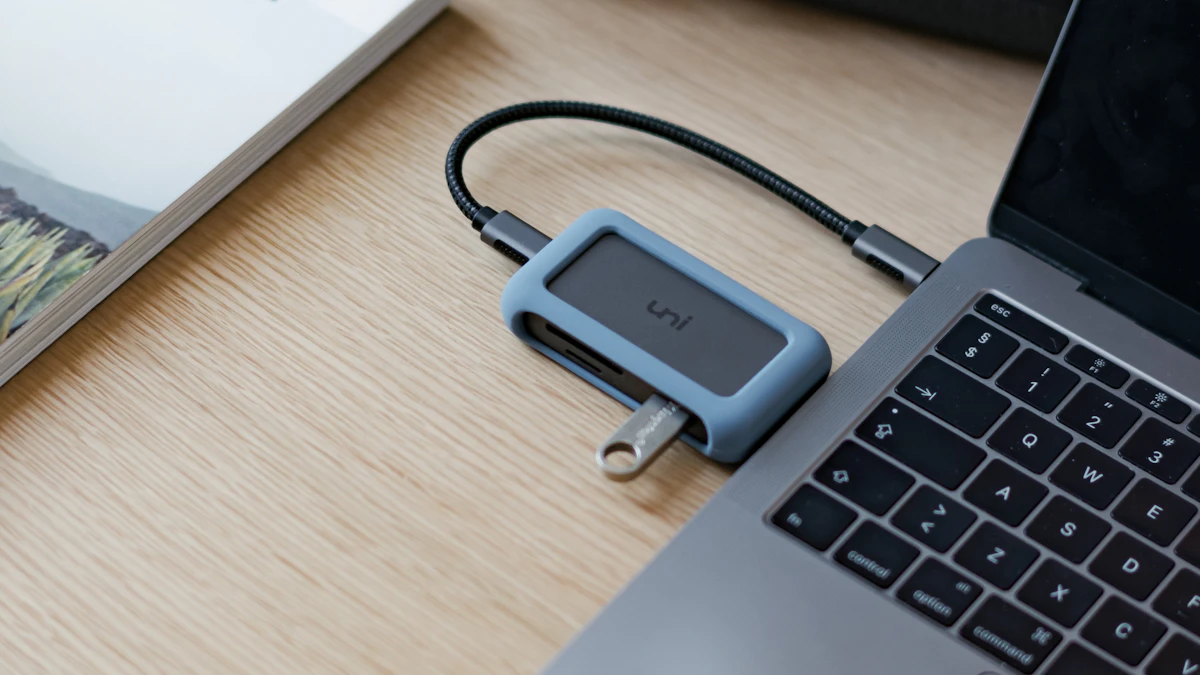
It will work if your laptop has a port that can send video, and that is the single most common reason a new portable monitor shows a blank screen. Most current models connect over USB-C, but not every USB-C port carries a video signal.
The ASUS ZenScreen MB16ACV is a typical example. On its ASUS spec page, the only input is listed as one USB-C port with "DP Alt Mode & USB 3.2." In plain terms, the laptop's USB-C port has to support DisplayPort Alt Mode (Thunderbolt ports also handle video) for a single cable to carry the picture.
How to check before you buy:
- Look for a small DisplayPort or Thunderbolt symbol printed next to the USB-C port on your laptop.
- Search your laptop's model number plus "specifications" and look for a line about display output on USB-C.
- If your laptop only has HDMI for video, choose a portable monitor with an HDMI input instead of a USB-C only model.
ASUS splits its own ZenScreen line into laptop models with HDMI, USB-C and USB 3.0 options, so the right connector is easy to filter for on the product page.
Do portable monitors need a separate power source?
Many do not, because they draw power from the laptop through the same USB-C cable. The MB16ACV lists power consumption of 6.64 W and a DC input of 5V at 3A, which is modest enough for a laptop port to supply in many cases.
That power has to come from somewhere, though. Running a second screen off your laptop will shorten its time on battery, so if you plan to work unplugged for long stretches, read our tips to extend battery life on a laptop. Some monitors include a second USB-C port so you can plug in a charger and pass power through. If you go that route, our guide to what USB-C PD numbers mean helps you pick a charger with enough wattage.
Can I use a portable monitor with a MacBook?
Yes, Macs with USB-C or Thunderbolt ports work with portable monitors, but the number of external displays you can run depends on the exact model. Apple does not use one rule for every Mac.
Apple's guide on how to connect external displays to your Mac explains how to check. Choose Apple menu > System Settings, click Help in the menu bar, choose your Mac's Specifications page, then scroll to Display Support or Video Support. If your Mac already drives one external monitor at your desk and supports only one, a portable screen will not add a third display.
Once it is plugged in, go to Apple menu > System Settings > Displays to set resolution and brightness, and choose whether to extend or mirror your desktop. If you are still deciding on the laptop itself, our comparison of MacBook Air vs MacBook Pro covers the differences that matter for multitasking.
How do I set up a portable monitor on Windows?
Plug it in, then press Windows key + P and choose Extend. According to Microsoft Support, that shortcut offers four modes: PC screen only, Duplicate, Extend and Second screen only. Extend is the one most people want, since it lets you drag windows from one screen to the other.
If the monitor does not appear:
- Open Start > Settings > System > Display.
- Under Multiple displays, select Detect.
- Select Identify to see which number belongs to which screen.
- Drag the display boxes so they match where the monitor actually sits (left or right of your laptop), then select Apply.
Two settings under Multiple displays are worth turning on for a screen you unplug often: "Remember window locations based on monitor connection" and "Minimize windows when a monitor is disconnected." They save you from hunting for windows that were open on a screen that is now in your bag.
Are portable monitors any good compared with a regular monitor?
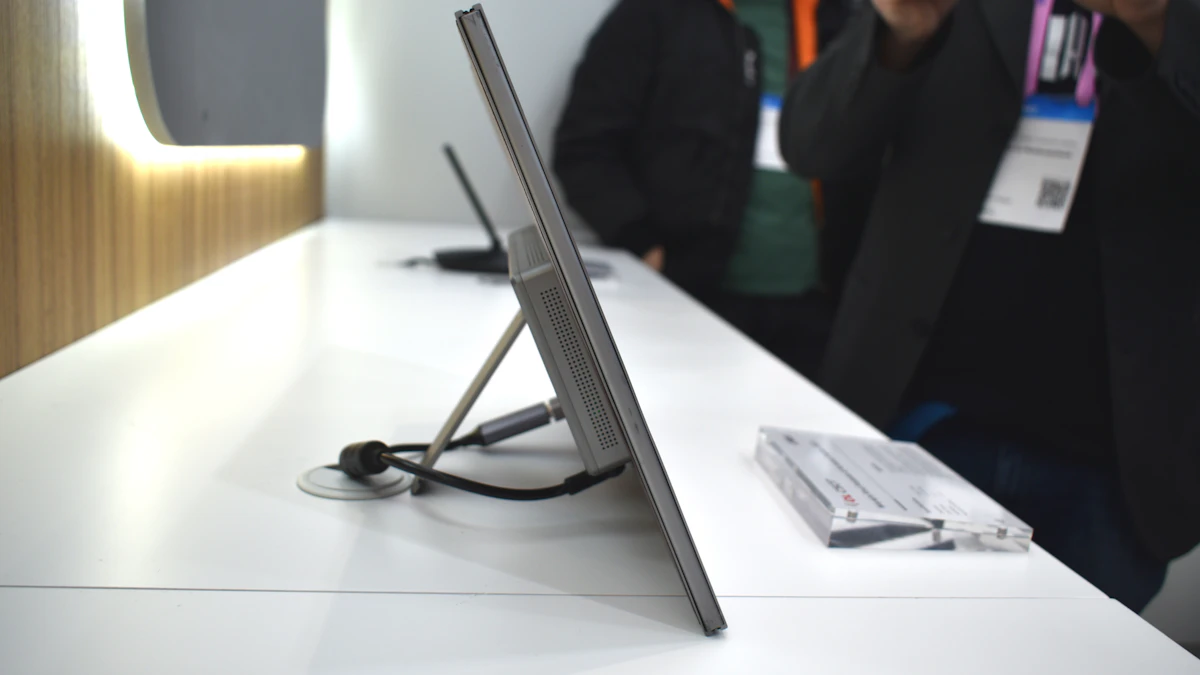
They are good for what they are, but they make clear trade offs to stay thin and light. The MB16ACV, for instance, is a 15.6 inch IPS panel at 1920 x 1080, with a typical brightness of 250 nits, a 60Hz maximum refresh rate, and no speakers. It weighs about 0.9 kg (1.98 lbs) and is roughly 1 cm thick.
Those numbers point to the main limits:
- Brightness: 250 nits is fine indoors but can look dim next to a bright window or outdoors.
- Size: most portable screens are close to laptop size, so you gain a second workspace, not a big one.
- Stand: many rely on a folding cover or a thin kickstand, which can wobble on a soft surface.
- Sound: speakers are often missing or basic, so plan on using your laptop or headphones.
A desktop monitor is better for long days at one desk. A portable one is better when the alternative is no second screen at all.
Can you use a portable monitor with a PS5 or Xbox?
You can, as long as the monitor has an HDMI input and its own power source, because consoles send video over HDMI rather than USB-C. ASUS markets a separate group of ZenScreen models for consoles that use HDMI connectivity for exactly this reason.
A USB-C only model like the MB16ACV will not connect to a console's HDMI port on its own. Check that the monitor lists HDMI among its inputs, and plan to plug it into the wall, since a console will not power it the way a laptop can. Expect the screen to be smaller than a TV, which suits a hotel room or a dorm more than a living room.
Can a portable monitor work with a phone?
Some phones can output video over USB-C, and some portable monitors are built with phones in mind. ASUS, for example, lists phone oriented ZenScreen models with a built in battery, since a phone cannot supply much power to an external display.
Before buying for this use, confirm that your phone supports video out over USB-C (many do not) and that the monitor either has a battery or can take power from a charger. Without both, you will get a dark screen.
Is a portable monitor right for students and remote workers?
It often is, because both groups move between places. A student switching between a dorm desk and a library table gets the same two screen setup everywhere, and a remote worker can carry one between home and a coworking space. If your laptop is still on the shopping list, our guides to the best laptop for working from home and how to choose a laptop can help you pick one with the right video ports from the start.
One last check before you order: look at your laptop's ports first, then the monitor's inputs, then its power needs, in that order. If all three line up, the screen should light up the first time you plug it in. For more device guides, browse our gadgets section.
Sources
Share this story
Spotted an error? Tell us