Key takeaways
- Anker's 341 USB C hub costs $39.99 and passes up to 85W to the laptop, but its HDMI port is limited to 4K at 30Hz.
- Apple says a hub does not increase the number of external displays an M4 or M5 MacBook Air can drive, which tops out at two.
- DisplayLink docks like the Plugable UD 6950PDZ can run three monitors on base model Macs, but need a driver and suit office work more than games.
In this story 8 sections
- How we chose these hubs and docks
- Hub or dock: what the difference means for you
- Best cheap travel hub: Anker 341 USB C Hub (7 in 1)
- Best for Mac users who want one HDMI at 60Hz: Apple USB C Digital AV Multiport Adapter
- Best for three monitors on a base model Mac: Plugable UD 6950PDZ
- Best desk dock for Thunderbolt laptops: CalDigit TS4
- USB C hub red flags worth skipping
- A quick checklist before you buy a USB C hub
Most people shopping for a USB C hub have one of two problems. Either the laptop has too few ports for a flash drive, an SD card and a monitor, or the desk setup needs one cable that does everything. A $40 hub solves the first. The second can cost $230 to $380, and buying the wrong kind wastes money in both directions.
The picks below match the hub to the job. Before spending anything, check two things on your own laptop: what its USB C or Thunderbolt ports support, and how many external displays the chip can drive. Those two limits decide more than any spec sheet on the box.
How we chose these hubs and docks
We did not test these products ourselves. The picks are based on each maker's published specifications and prices, Apple's own documentation on Mac ports and display limits, and the USB Implementers Forum's rules on power delivery. We favored products with clear spec pages that state the real limits (refresh rates, charging watts, which ports carry video) instead of hiding them. Prices are the list prices on each maker's US store in November 2026, and they move often.
Hub or dock: what the difference means for you
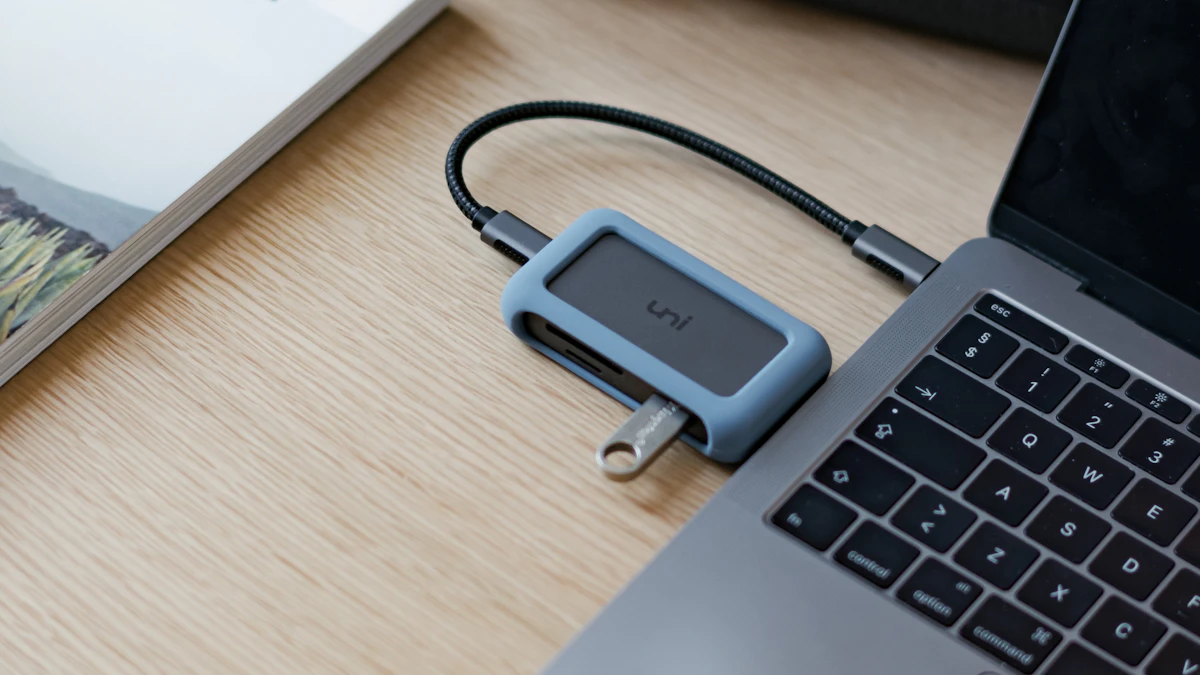
A hub is a small, bus powered adapter. It draws power from your laptop or passes through power from your charger, and it usually adds one HDMI port, a couple of USB A ports and a card reader. A dock has its own power supply, more ports, and is meant to stay on the desk.
- Hubs in this guide cost $40 to $69, fit in a bag, and support one display.
- Docks in this guide cost $230 to $380, need a wall outlet, and add Ethernet plus support for more than one monitor.
- Charging passthrough on a hub is always lower than your charger's rating, because the hub keeps some power for itself.
- Thunderbolt docks need a Thunderbolt or USB4 port on the laptop to deliver full speed and multiple displays.
Best cheap travel hub: Anker 341 USB C Hub (7 in 1)
This is for students and travelers who mostly need a flash drive port, an SD card slot and an HDMI port for a projector or TV.
Why it makes the list. According to Anker's product page, the 341 adds one HDMI port, two USB A ports at 5Gbps, a USB C data port, SD and microSD slots, and a USB C power input. Plug a 100W charger into that input and up to 85W reaches the laptop. Anker says the hub keeps the other 15W for itself.
Downsides. HDMI tops out at 4K at 30Hz, which looks fine for slides and video but feels sluggish for everyday desktop work on a 4K monitor. The extra USB C port is data only at USB 2.0 speed (480Mbps), and Anker states that it will not carry video. The compatibility lists on the page are also inconsistent across sections, so confirm your laptop model before ordering.
Price at the time of writing: $39.99 on Anker's US store (November 2026).
Best for Mac users who want one HDMI at 60Hz: Apple USB C Digital AV Multiport Adapter
This suits a MacBook or iPad owner who connects to a single TV or monitor and wants the plain, guaranteed option.
Why it makes the list. Apple's store listing gives HDMI output up to 3840 x 2160 at 60Hz on recent devices, along with one USB A port and a USB C port for charging. That 60Hz rate is the main step up from budget hubs that stop at 30Hz.
Downsides. You get three ports and nothing else: no card reader, no Ethernet. Apple notes that some older models, such as the 2018 MacBook Air and older Intel 13 inch MacBook Pro models, get only 1080p at 60Hz or 4K at 30Hz. Apple does not list a passthrough wattage.
Price at the time of writing: $69 at Apple (November 2026).
Best for three monitors on a base model Mac: Plugable UD 6950PDZ
This one targets a specific headache. Apple's support page on how many displays a MacBook Air can connect says M4 and M5 models handle up to two external displays, and that a hub "does not increase the maximum number of displays." Older base M1, M2 and M3 laptops are more limited still.
Why it makes the list. Plugable's dock uses DisplayLink, a software driver that sends video over USB instead of the chip's native display output. Plugable's spec page says this lets it run up to three displays, including on base M1, M2 and M3 Macs. It also adds six USB A ports at 5Gbps, gigabit Ethernet, a headset jack and up to 100W of charging to the laptop.
Downsides. On a Mac you must install DisplayLink Manager and grant it Screen Recording permission. Because the video is compressed and sent over USB, it is a good fit for documents, spreadsheets and browsers, and a poor one for games or color critical work. The spec page lists different HDMI and DisplayPort versions in different sections, so check the exact refresh rate for your monitors before buying.
Price at the time of writing: $229.99 on Plugable's store (November 2026).
Best desk dock for Thunderbolt laptops: CalDigit TS4
This is for people with a Thunderbolt laptop who want one cable to handle charging, fast storage, wired internet and monitors at a permanent desk.
Why it makes the list. CalDigit's TS4 page lists 18 ports: three Thunderbolt 4 ports at 40Gb/s, three USB C and five USB A ports at 10Gb/s, a DisplayPort 1.4 output, UHS II SD and microSD slots, 2.5 Gigabit Ethernet and audio jacks. It sends up to 98W to the laptop.
Downsides. It is expensive, and plugging a Thunderbolt dock into a plain USB C laptop wastes much of what you paid for. CalDigit notes that M1, M2 and M3 Macs do not support dual monitors through Thunderbolt, and that Ethernet does not work on USB C only hosts. Stock also varies: the TS4 showed as out of stock on CalDigit's own US store when we checked, though the maker also links to Amazon for purchase.
Price at the time of writing: $379.99 list on CalDigit's US store (November 2026).
USB C hub red flags worth skipping
Some cheap hubs make sense only if you never plug in a monitor. Skip any hub that:
- Lists HDMI at "4K" without stating the refresh rate. That usually means 30Hz.
- Advertises "100W PD" without saying how much reaches the laptop. Anker's 341, for example, keeps 15W for itself.
- Promises two or three monitors on a Mac without mentioning DisplayLink. Apple's chip limits will block it.
- Needs a separate power brick but offers no Ethernet or extra display, so it is not doing a dock's job.
If your laptop charges slowly through a hub, the hub may not be the culprit. Our explainer on USB C PD charger numbers covers how watts, volts and cable ratings fit together. The USB IF Power Delivery page confirms standard USB C cables top out at 100W, with up to 240W needing the newer extended power range.
A quick checklist before you buy a USB C hub
- Find your port type. Apple's guide to identifying the ports on your Mac shows which models have Thunderbolt and which have plain USB C.
- Count your monitors and check your chip's display limit before you look at docks.
- Decide on refresh rate. For a desktop monitor, look for 4K at 60Hz or better.
- Match the charger. Passthrough charging only works as well as the charger plugged into the hub.
- Decide whether it travels. A hub goes in the bag. A dock stays on the desk.
If you are still picking the laptop itself, compare ports in our MacBook Air vs MacBook Pro breakdown and our guide to the best laptop for working from home. And if a second screen is the real goal, see whether portable monitors are worth it. More buying advice lives in our Gadgets section.
One last tip: keep the box and receipt for the first week. If the hub runs hot, drops your monitor or charges slower than your bare charger, return it while you still can.
Sources
- Anker 341 USB-C Hub product page
- Apple USB-C Digital AV Multiport Adapter
- Plugable UD-6950PDZ product page
- CalDigit Thunderbolt Station 4
- CalDigit US store, TS4
- Apple Support: How many displays can be connected to MacBook Air
- Apple Support: Identify the ports on your Mac
- USB-IF: USB Charger (USB Power Delivery)
Share this story
Spotted an error? Tell us